POS Rewards allow customers enrolled in your loyalty program to earn and redeem stamps for discounts on in-store purchases. This guide will help you set up POS Rewards, including the widget and reward settings, so customers can redeem their stamps for in-store discounts.
How to add Appy Stamp Loyalty & Rewards app to your POS store
Add extension from Shopify admin
-
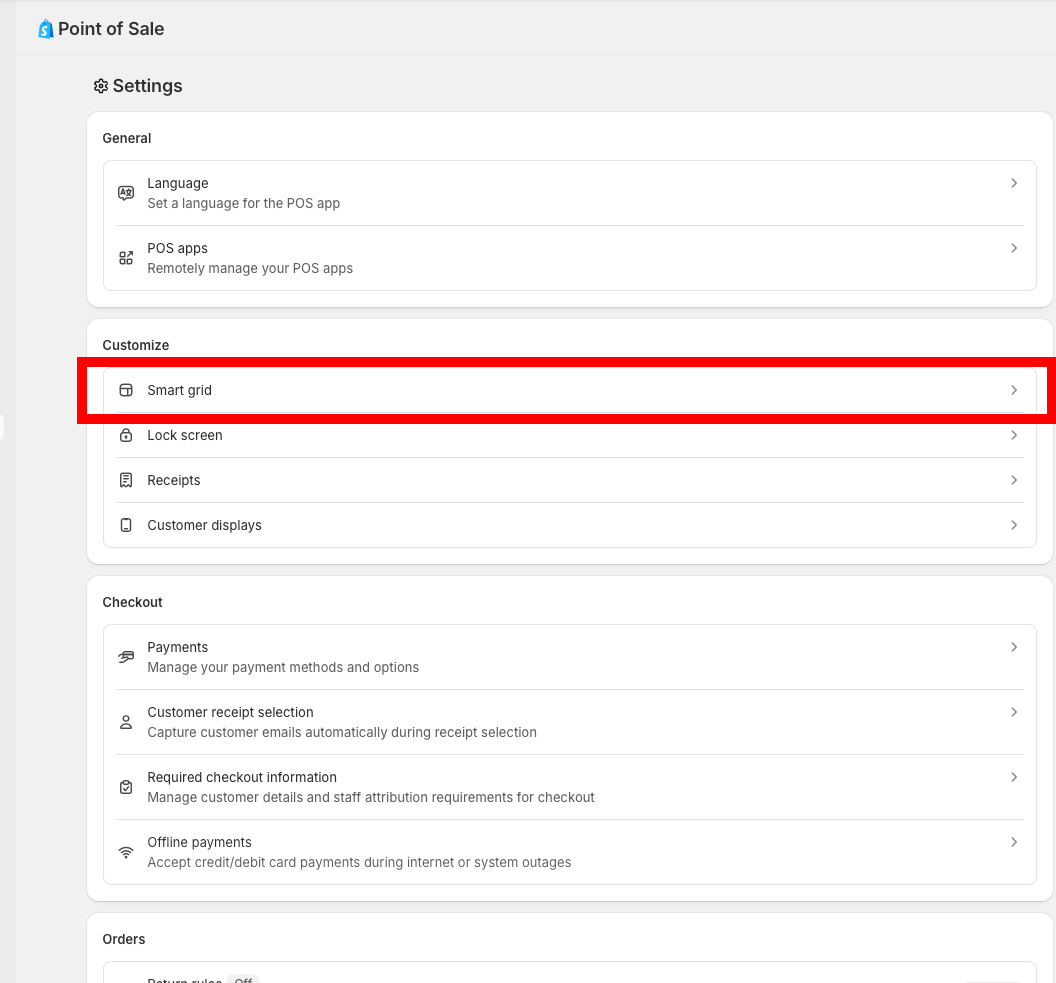
Go to Point of sale > Settings
-
Under customisation, click on the smart grid button
-
Click on your location
-
Click customisation
-
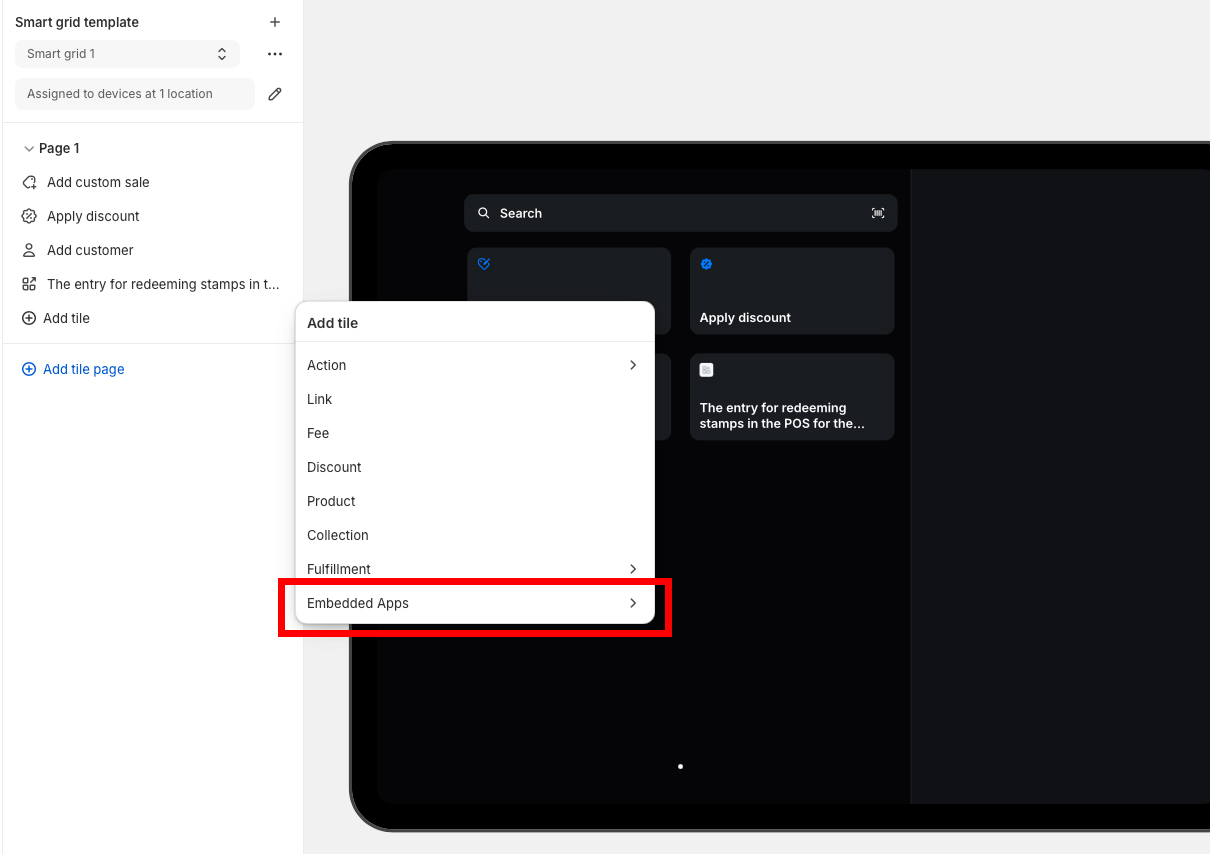
In the sidebar, click Add tile > embedded Apps
-
Select Appy Stamp Loyalty & rewards
-
Add the POS UI extension
-
Then click apply
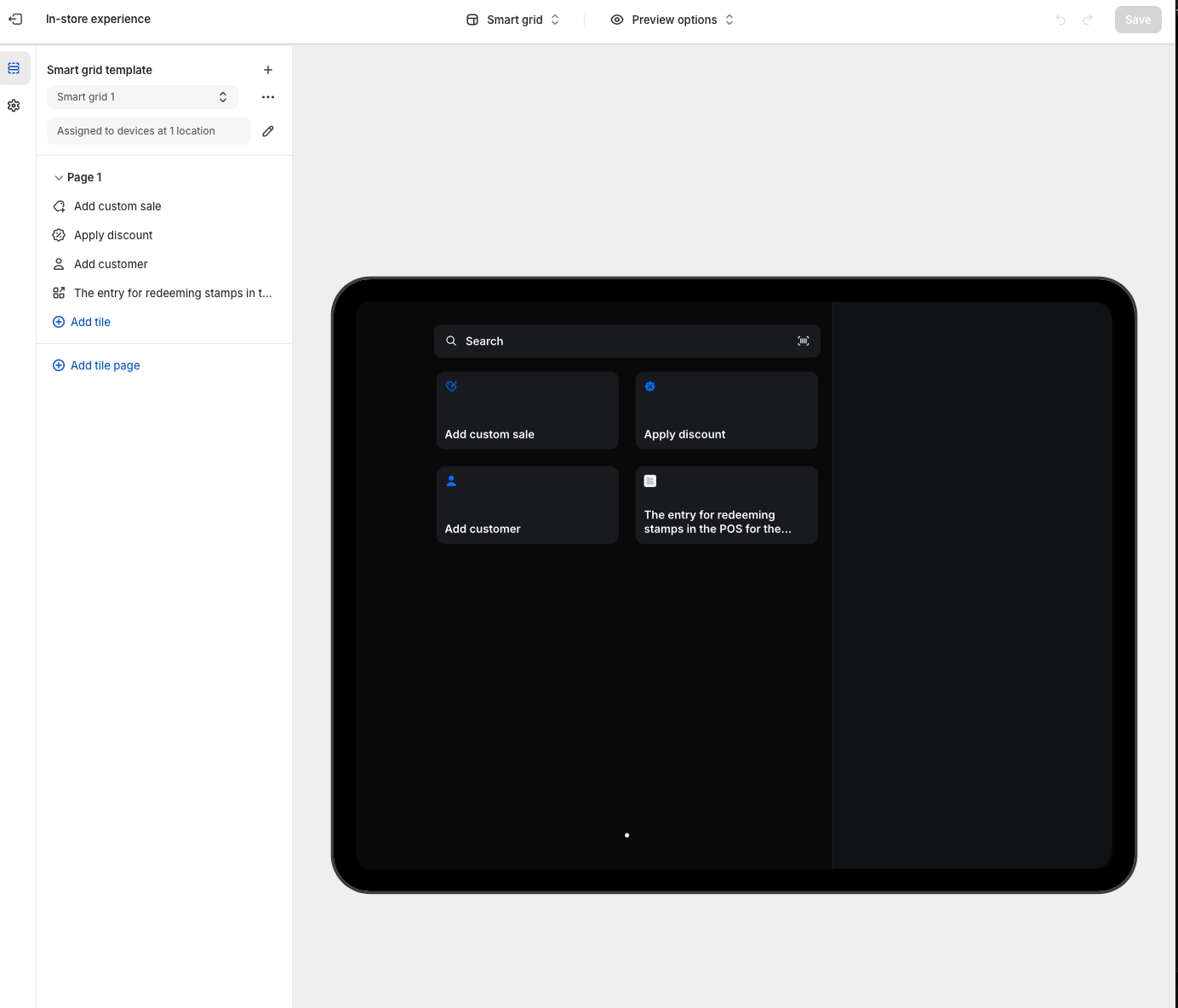
- Save changes from the smart grid preview.
Add Extension from mobile/ store device
-
Open Shopify POS app
-
Tap Add tile
-
Add app
-
Click on Appy Stamp Loyalty & Rewards
-
Press Add POS UI extension
-
Click save if successful it should look like this
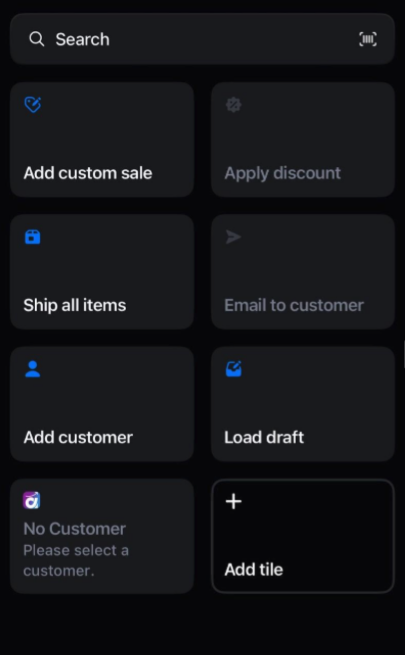
Stamp and card balance
Once you have selected a customer in the POS app, their rewards balance will appear automatically in the tile.
Important: You will need to add a product to the cart before you can click through to the discount options and codes.
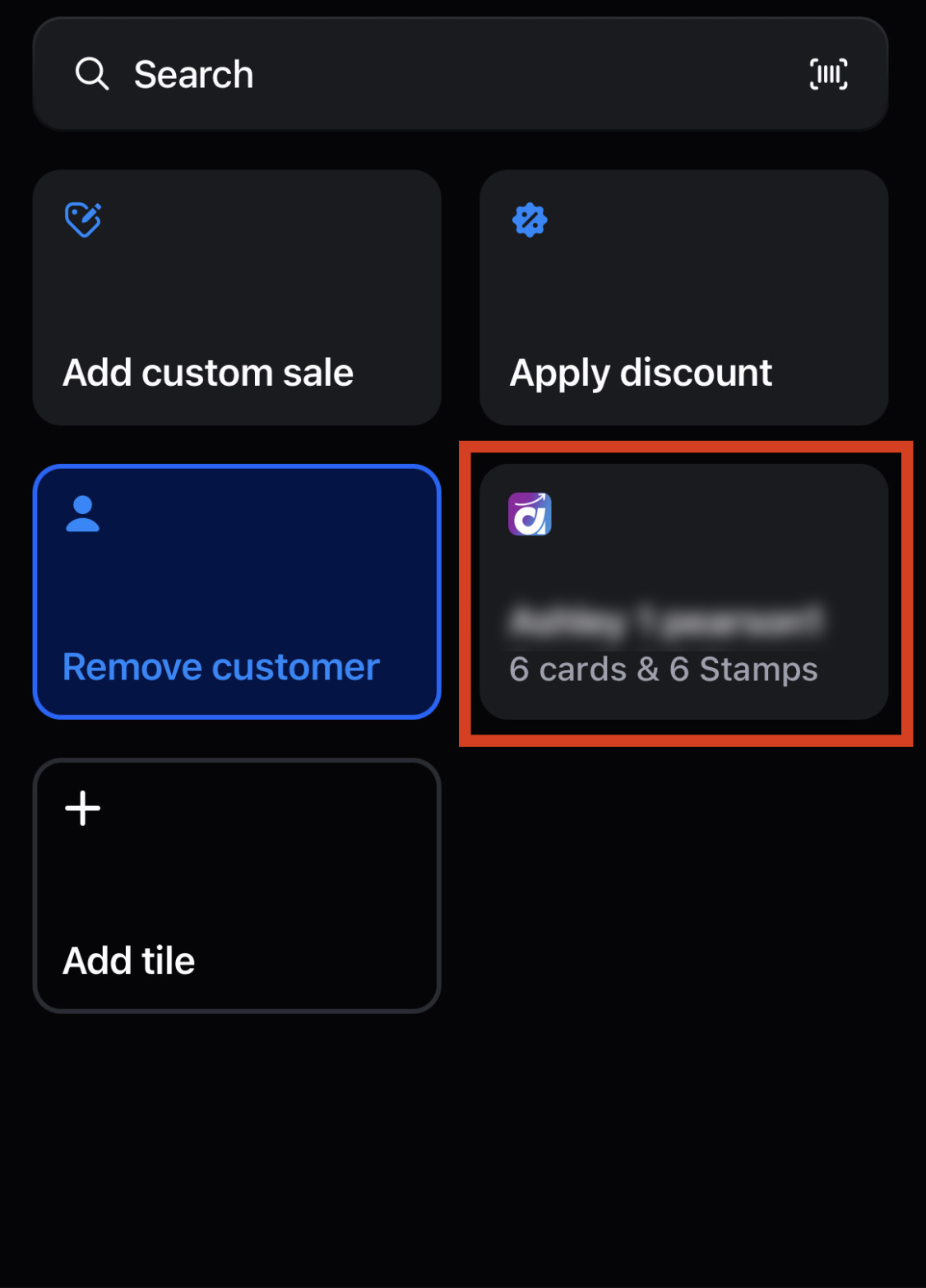
Once you have completed these requirements, you will be able to tap on the tile to open up the modal to select the rewards.
Note: The balance shown here only updates the first time you load up a customer. If you spend or refund rewards, you might not see the most recent balance on the tile. You will see the recent balance in the modal when you click through as we load the customer each time the modal is opened.
To apply a reward via POS
-
Open up the POS store app
-
Add your customer
-
Add an item to the basket
-
Click on the Appy Stamp Loyalty & Reward discount tile
-
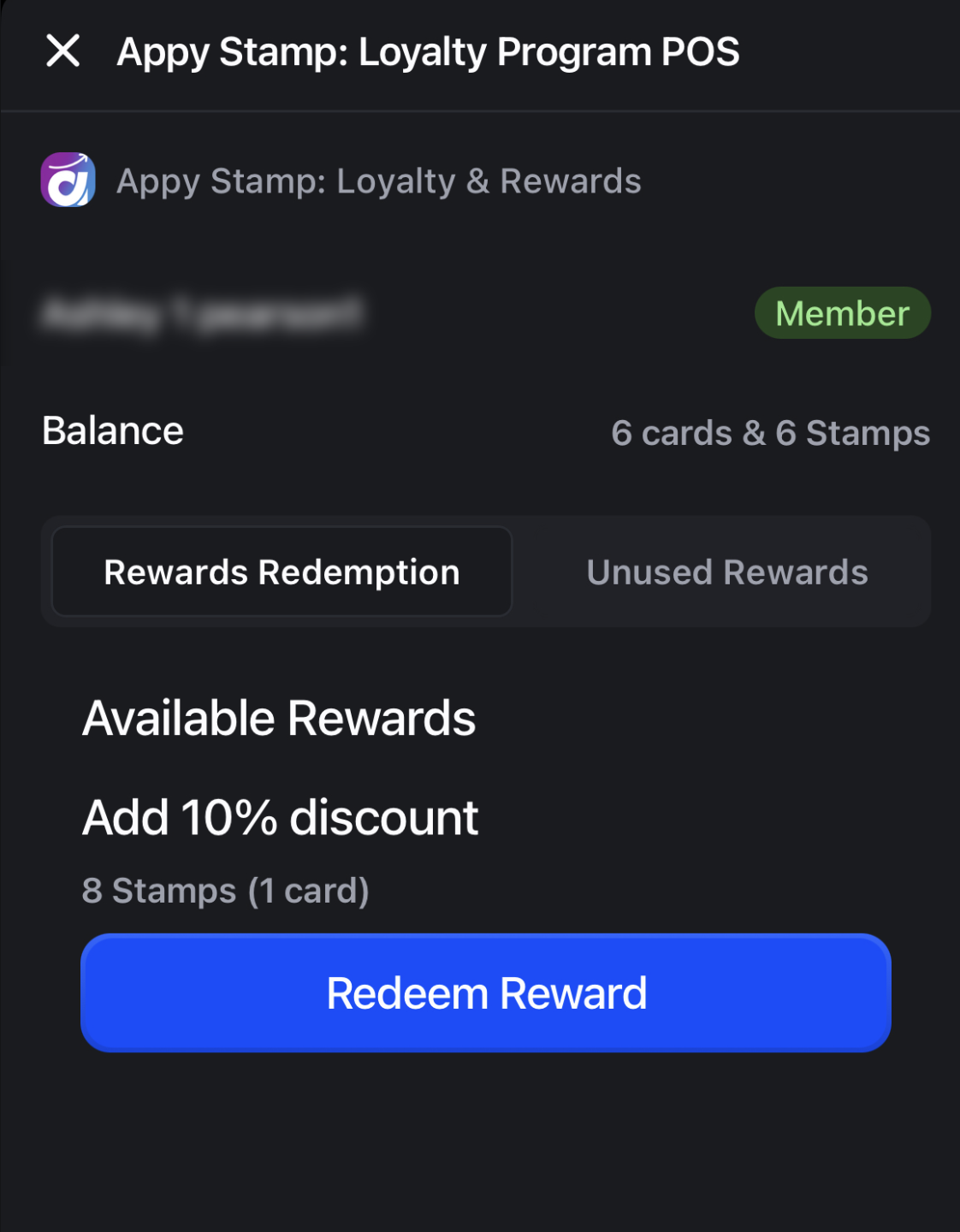
A modal will open up and you can choose between the POS discounts that you have set up.
The rewards redemption section will show all available and affordable rewards for the selected customer. This means if they do not meet the balance, it will not show up in the list or if the reward is inactive in the admin.
If an unused code of the same reward exists for a customer, you will be prompted to not use their stamp balance. You can override this by clicking on the confirm button again.
Note: Rewards in the POS are tied to that customer, so only that customer account can use them. If you remove the current customer with a discount in the cart, Shopify will automatically remove the cart discount code.
Unused Rewards
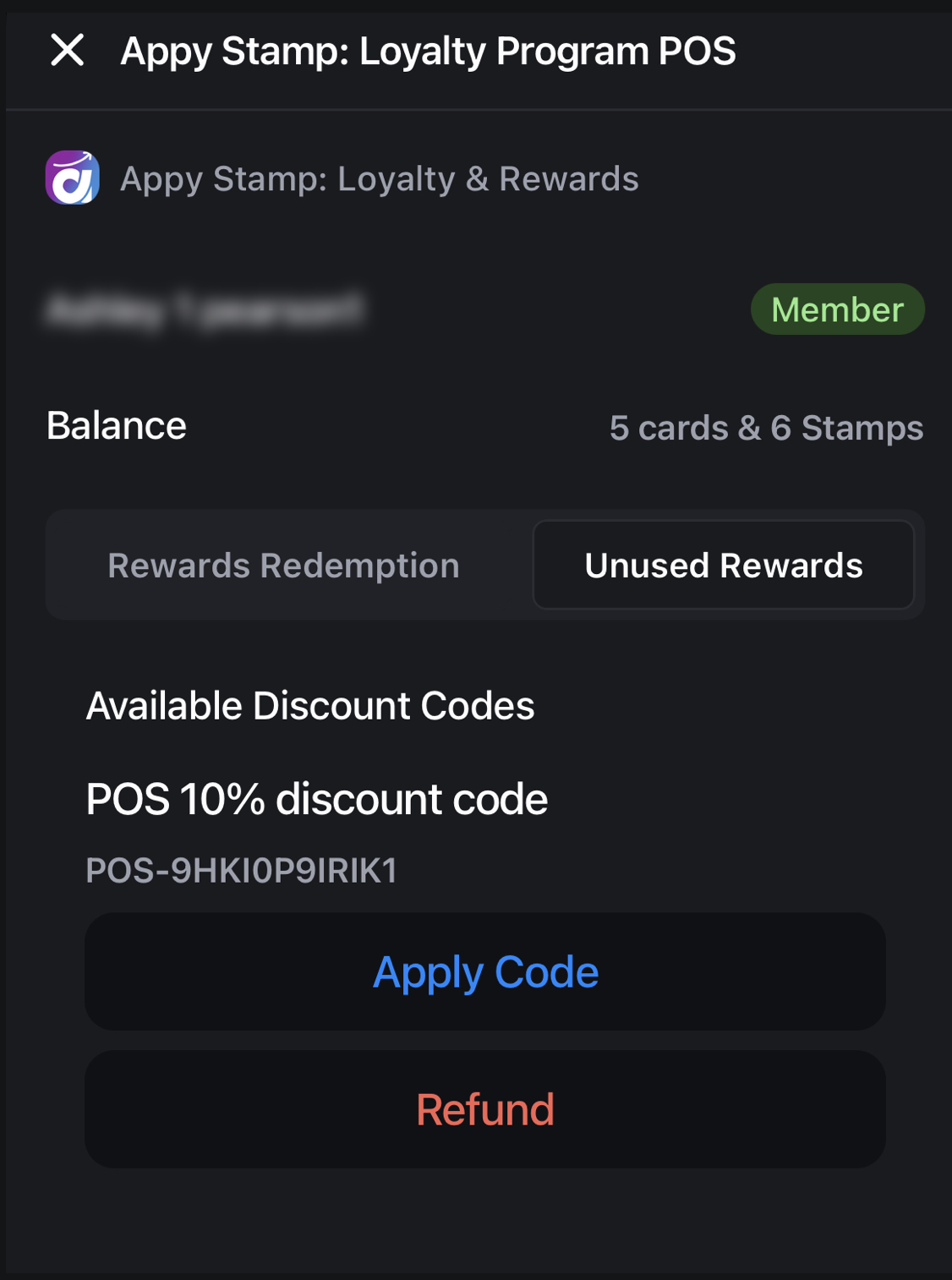
This is where you can see all of the unused rewards that the customer has available so you can use these instead of redeeming a new reward for them.
You can either click Apply Code, to add that to the cart or if the customer no longer wishes to use it, you can refund the code and return the balance back to the customer.
To Learn how to set up POS Rewards click here