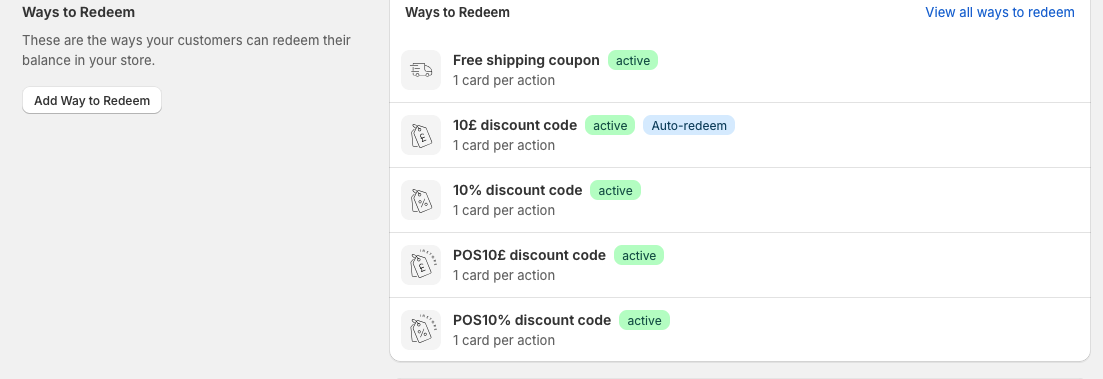
POS Rewards allow customers enrolled in your loyalty program to earn and redeem stamps for discounts on in-store purchases through Shopify POS. This guide explains how to install the Appy Stamp POS extension, configure POS rewards, and redeem rewards during checkout. Before starting, ensure Appy Stamp is installed and your reward program has already been configured in the Appy Stamp admin.
POS Fixed amount discount
This is where you can set up a POS fixed amount discount.
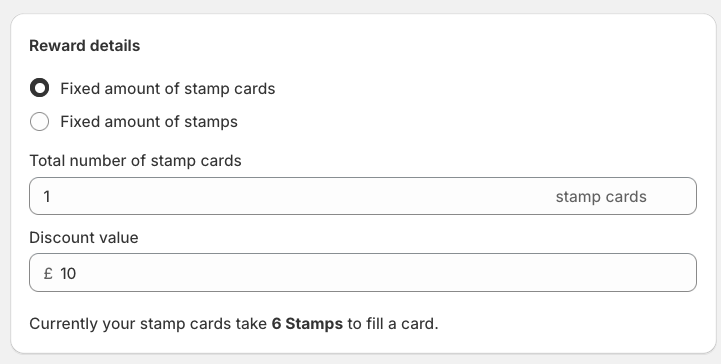
Section 1: Reward details.
Here you choose between fixed amount of stamp cards or fixed amount of stamps and the discount value of the reward.
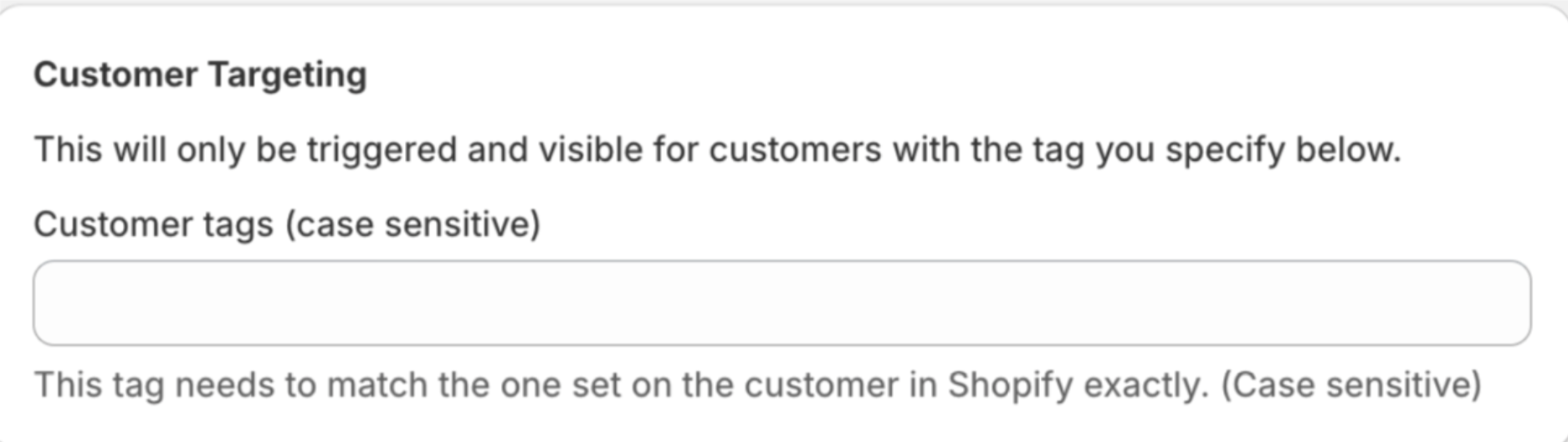
Section 2: Customer targeting
Here you can set up your targeting feature. so customers with certain tags will only have access to this bonus stamp reward. To learn more about customer targeting tags Click here
 The custom icon section on the right hand side allows you to either select the default icon or the option to upload your own icon.
The Status panel on the right of the page shows whether the discount is active or disabled, and underneath confirms the setup you have selected on the left.
Once this is all filled in, click on the green create button at the top of the page.
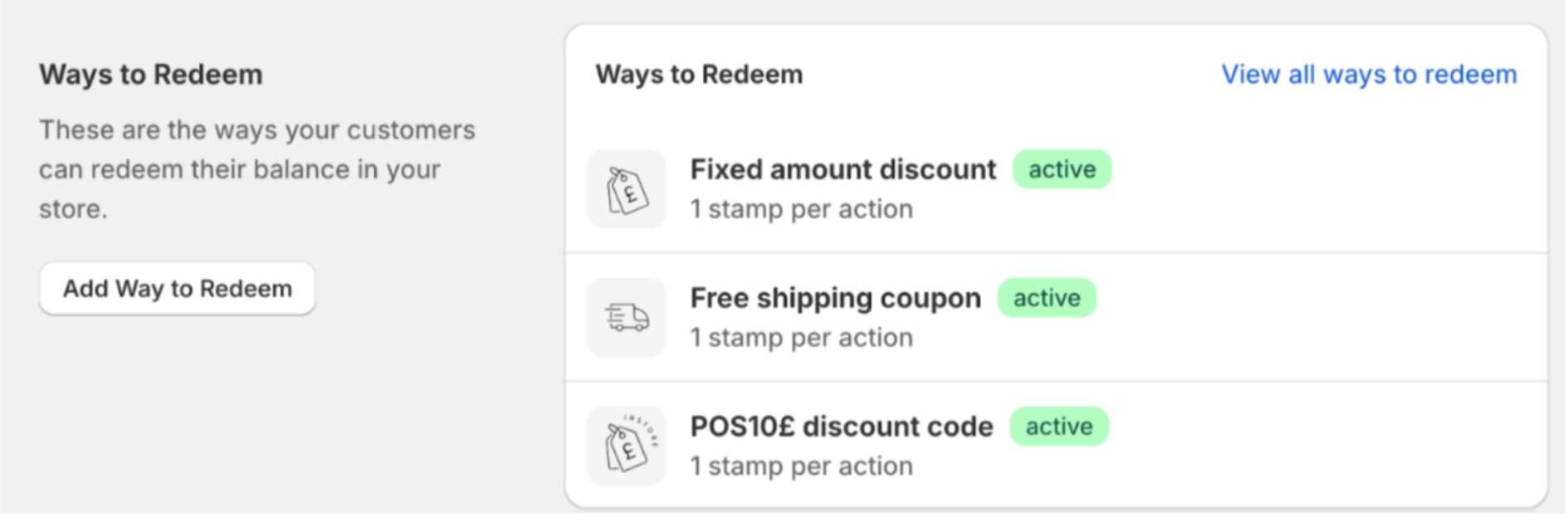
If this is done correctly and working it should appear in the redeem stamps section like so.
POS percentage off discount
This is where you can set up a POS percentage off discount.
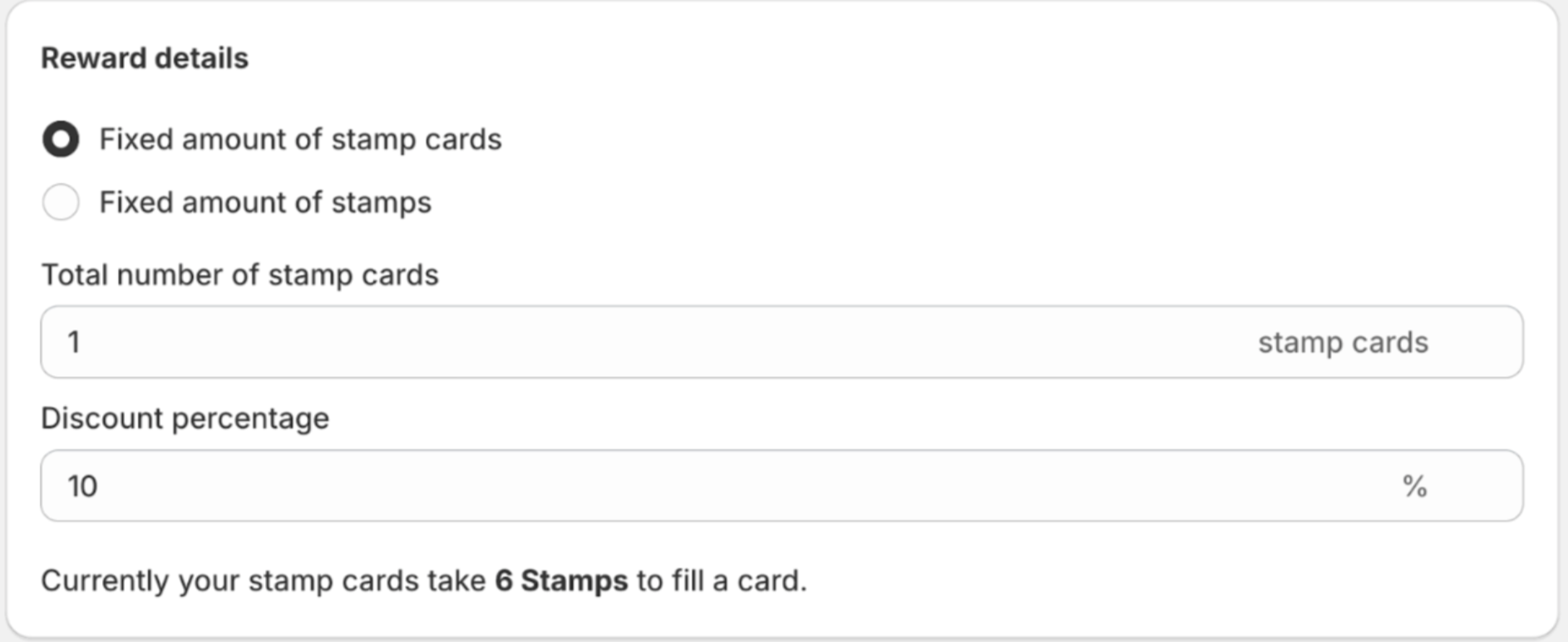
Section 1: Reward details.
Here you choose between fixed amount of stamp cards or fixed amount of stamps and the discount value of the reward.
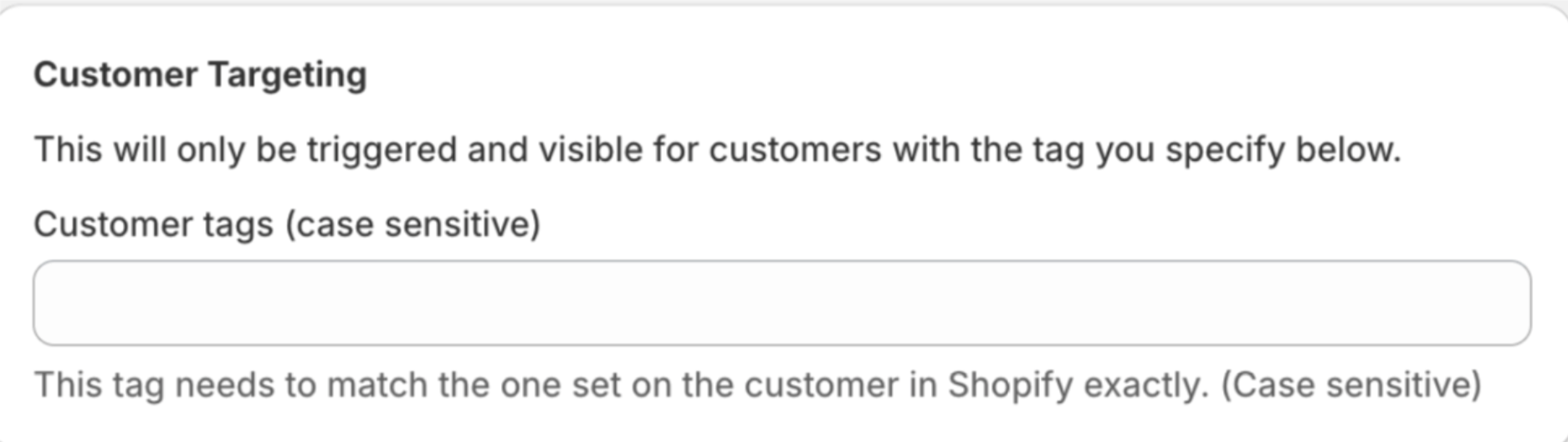
Section 2: Customer targeting
Here you can set up your targeting feature. so customers with certain tags will only have access to this bonus stamp reward. To learn more about customer targeting tags Click here
 The custom icon section on the right hand side allows you to either select the default icon or the option to upload your own icon.
The Status panel on the right of the page shows whether the discount is active or disabled, and underneath confirms the setup you have selected on the left.
Once this is all filled in, click on the save button at the top of the page.
If this is done correctly and working it should appear in the redeem stamps section like so.