This feature allows you to attach a scannable QR code to your customers reward emails. This is great feature for stores who have customers that shop both online and in-store.
When a customer decides to redeem their stamp balance via the online widget, these discount codes don't show up via our POS tile as they are considered "online" rewards. This can make it hard for customers to use all their available codes so the QR code was added to their reward emails to allow quick and seamless redemption in-store.
When a customer reaches your checkout in-store with a discount code, they can simply show the QR code, and staff can scan it using the Appy Stamp tile in your POS system to apply the discount automatically.
How to set up QR codes in your customer reward emails
-
Navigate to Notifications > Settings in your Appy Stamp dashboard.
-
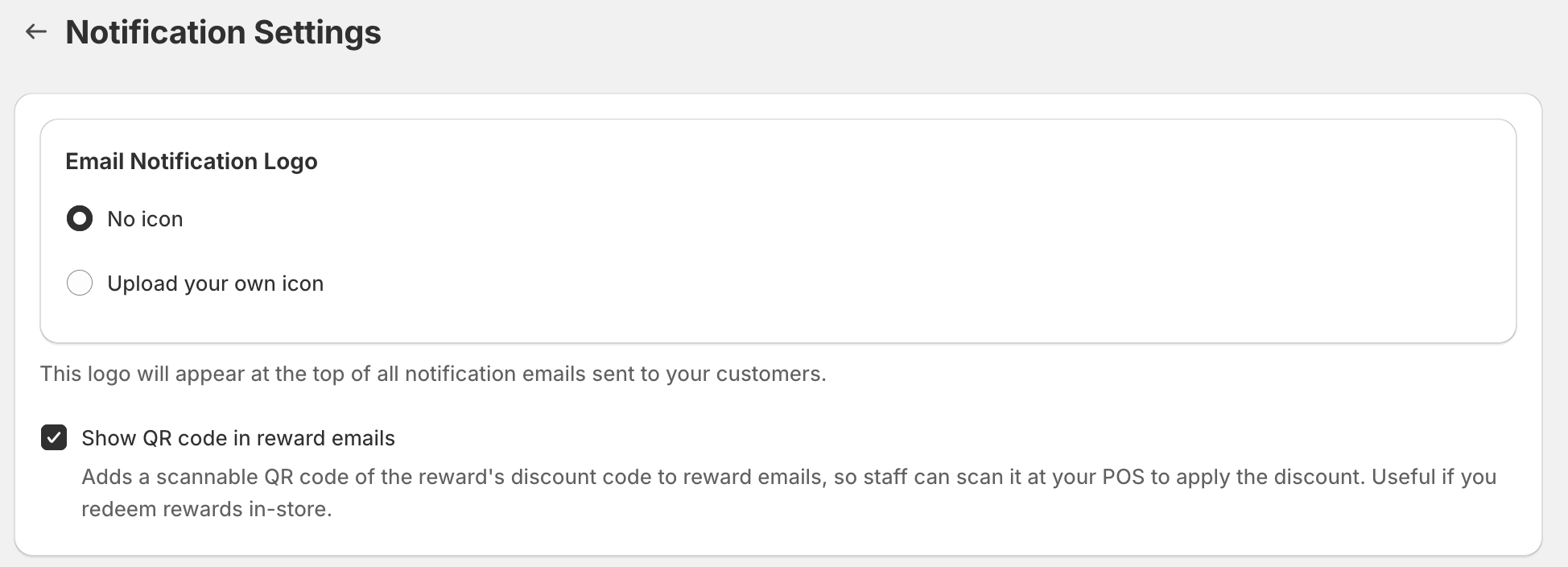
Enable the option Show QR code in reward emails.
-
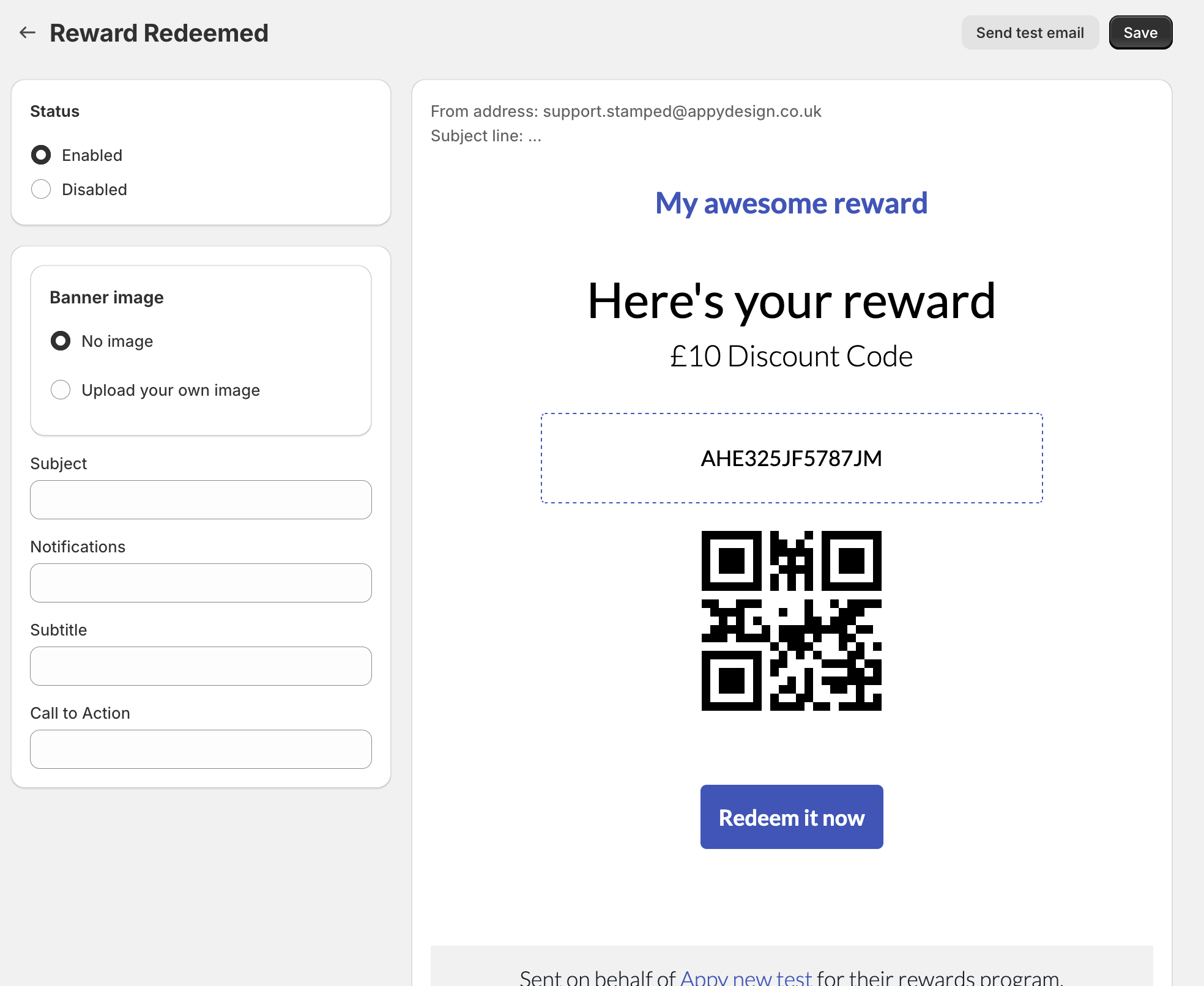
Make sure the Reward Redeemed notification is enabled so that when a customer redeems a reward, they receive an email containing the QR code.
Using the QR Code in Your POS Store App
-
Activate the QR scanner in your POS store app.
-
Add the customer to the order.
-
Add items to the basket.
-
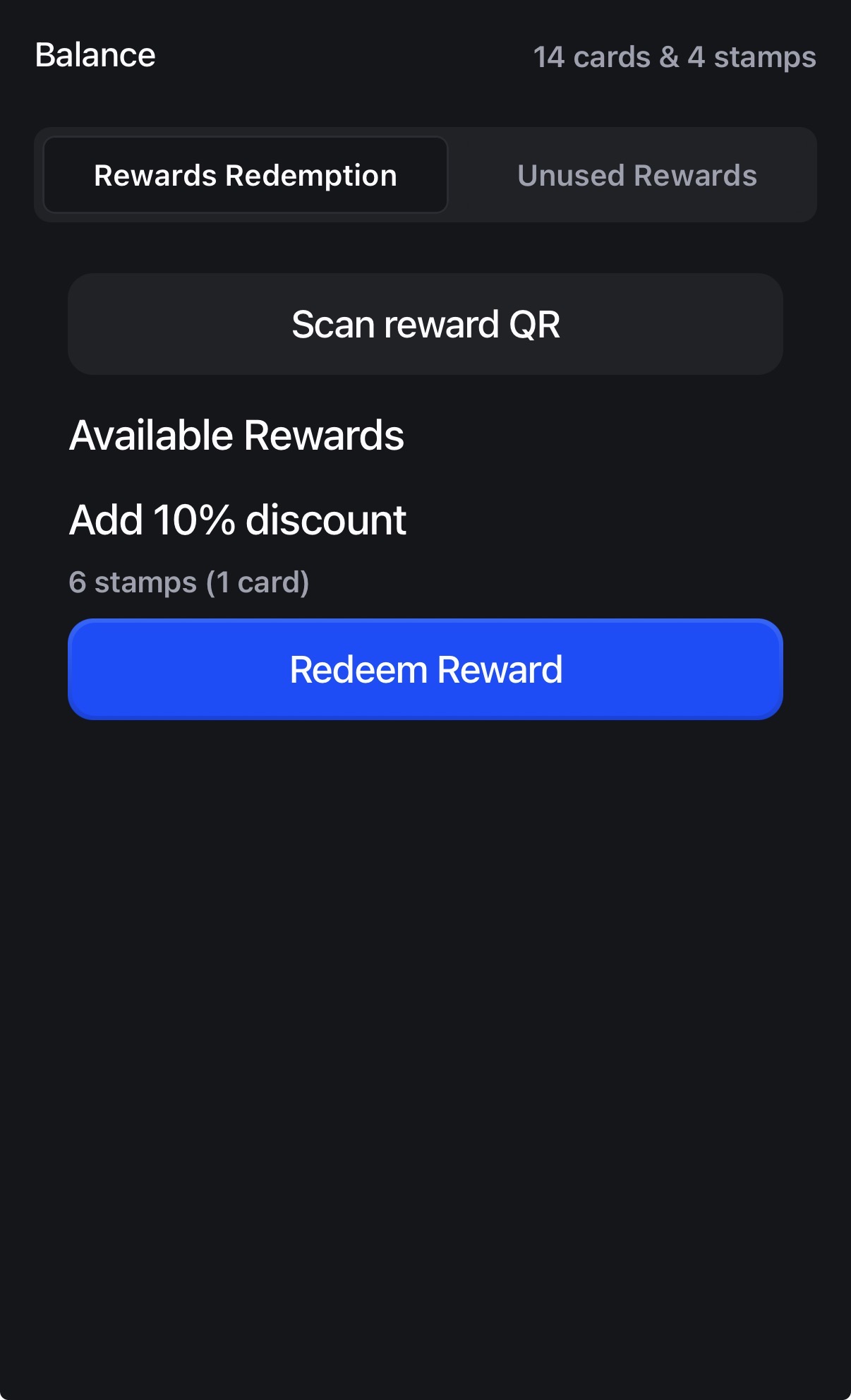
Click on the Appy Stamp tile.
-
Click Scan Reward QR.
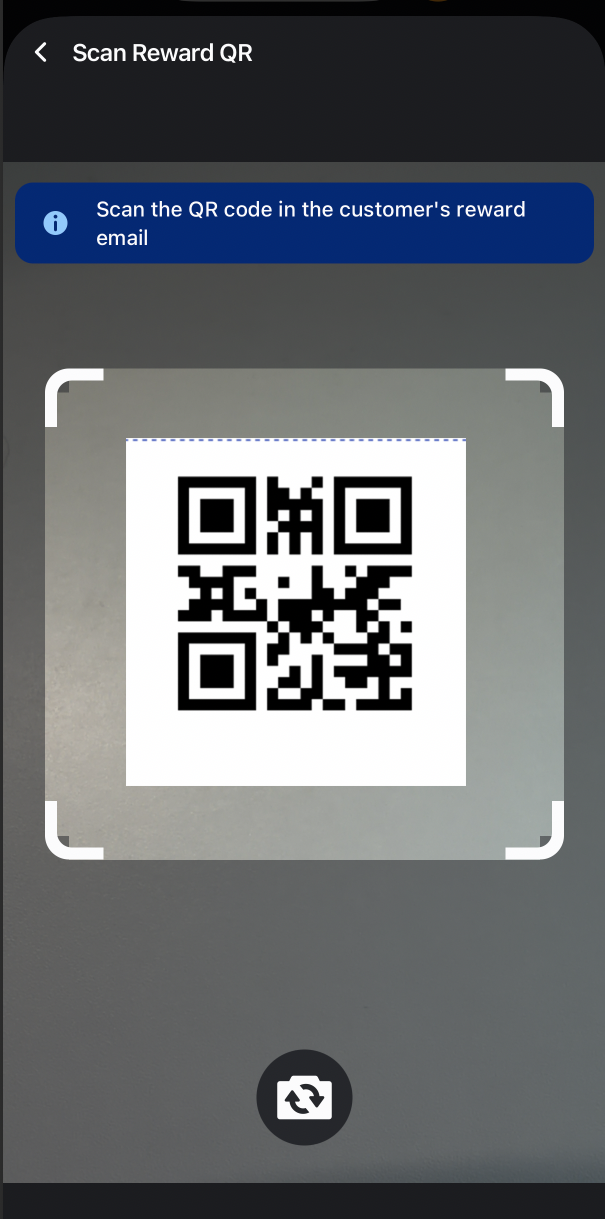 6. Scan the customer's QR code from their reward email.
Once scanned, the discount will be automatically applied to the checkout.