Auto redeem rewards is a great feature that automatically redeems a reward when a customer has earned enough stamps and places an order. The customer will then receive the reward code via email and in the widget under the rewards available section.
This saves customers from having to go into the widget and manually redeem their stamps for a reward.
How to Set Up an Auto Redeem Reward
Setting up an auto redeem reward couldn’t be easier. Simply head over to Program Settings and, under Stamp Program:
-
Click Add Ways to Earn.
-
Select either Percentage Off or Fixed Amount Off.
-
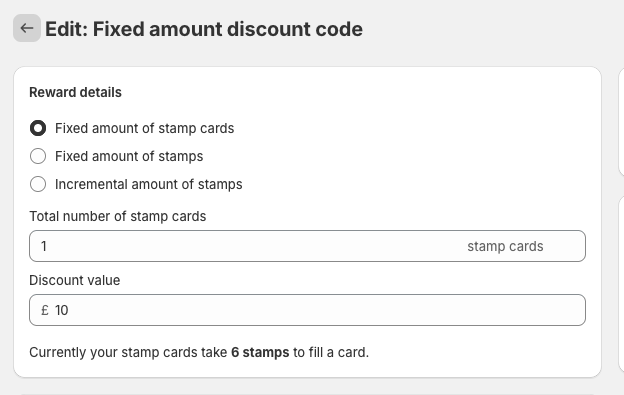
Set up the reward details, including how many stamps or stamp cards the customer must spend to redeem the reward.
-
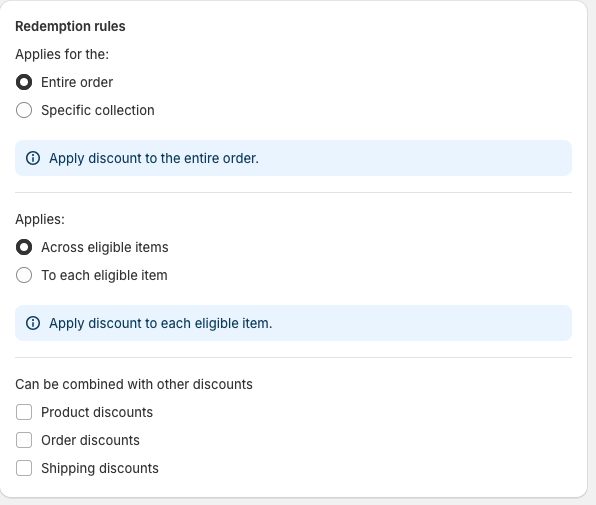
Redemption rules: This is where you configure your redemption rules, such as whether the reward applies to the entire order or a specific collection, and whether the discount can be combined with other rewards.
-
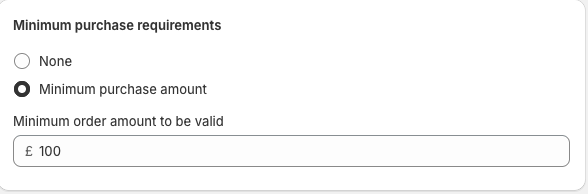
Minimum purchase requirements: This is where you can set a minimum spend amount that a customer must reach before they are able to use the reward.
-
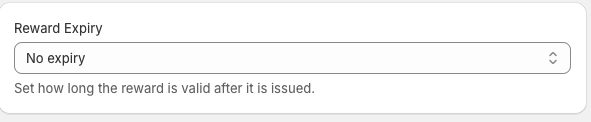
Reward Expiry: This is where you can set an expiry date for the reward.
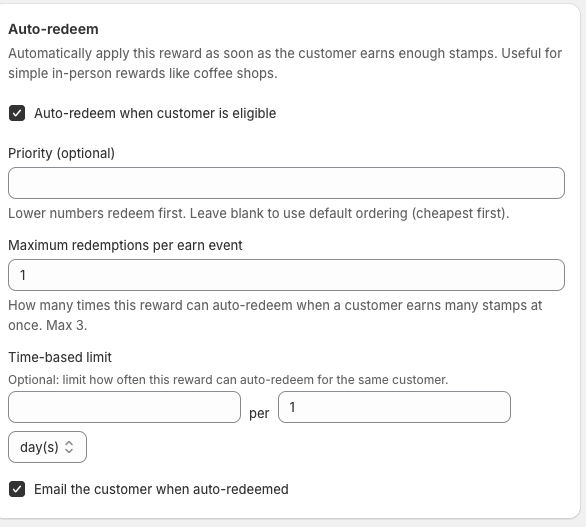
Auto Redeem: This is where you configure your auto-redeem settings.
-
Priority (Optional): This setting determines which reward is prioritised when multiple auto-redeem rewards are active and the customer only has enough stamps for one reward. In this case, the system will prioritise the reward with the lower value.
-
Maximum redemptions per event: This is where you set how many times a reward can be automatically redeemed when a customer has more stamps than required for a single redemption. For example, if a customer has enough stamps for 2 rewards and earns a 3rd, but you have set the maximum redemption limit to 1 per event, the customer will only receive 1 reward per order placed. The maximum limit is 3 as a safeguard against gaming or abuse.
-
Time-based limit (Optional): This setting controls how often a reward can be automatically redeemed. For example, if you set it to once per 1 day, after a customer places an order and receives an auto-redeemed reward, they will not receive another auto redemption during that time period, regardless of how many additional orders they place.
Once this is all set up, simply click Save at the top and the reward will be activated.
If configured correctly, an auto-redeem icon will appear next to the reward when you return to the Ways to Earn list, like this:
-

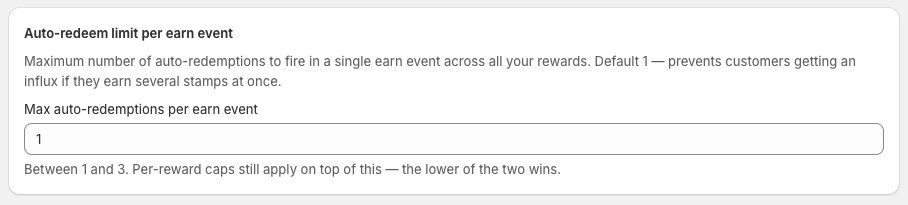
You can also set a master auto-redeem limit per event here. This ensures that all rewards with auto redeem enabled are limited to the maximum number of redemptions you have set. The maximum limit is 3.
That it you are all set for your auto redemptions to take place.