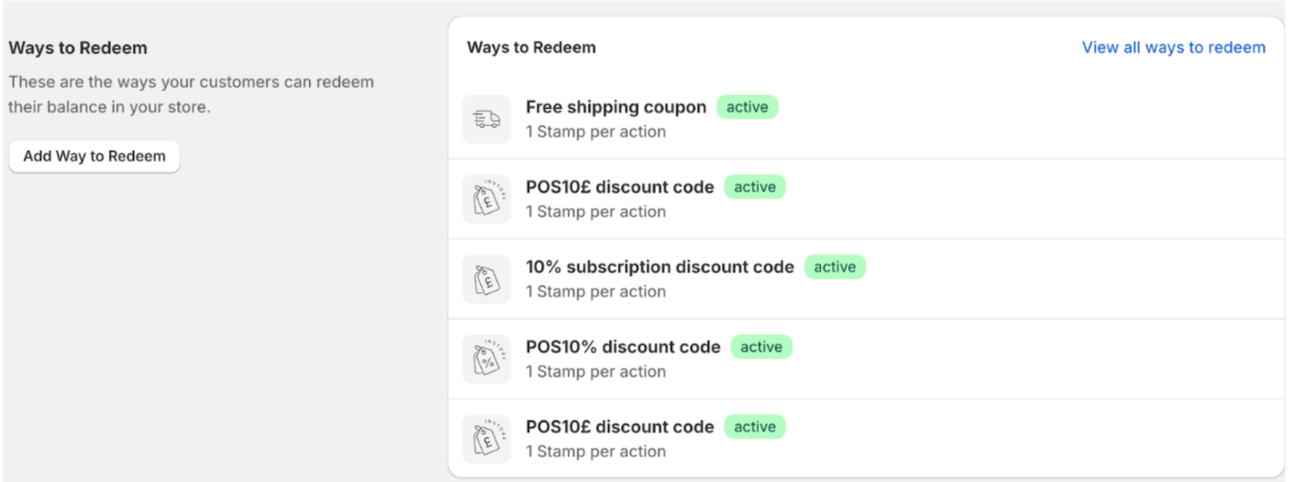
This is where you can choose what rewards the customers can use their stamps on.

Click on Add way to redeem button to show which options you have to choose from
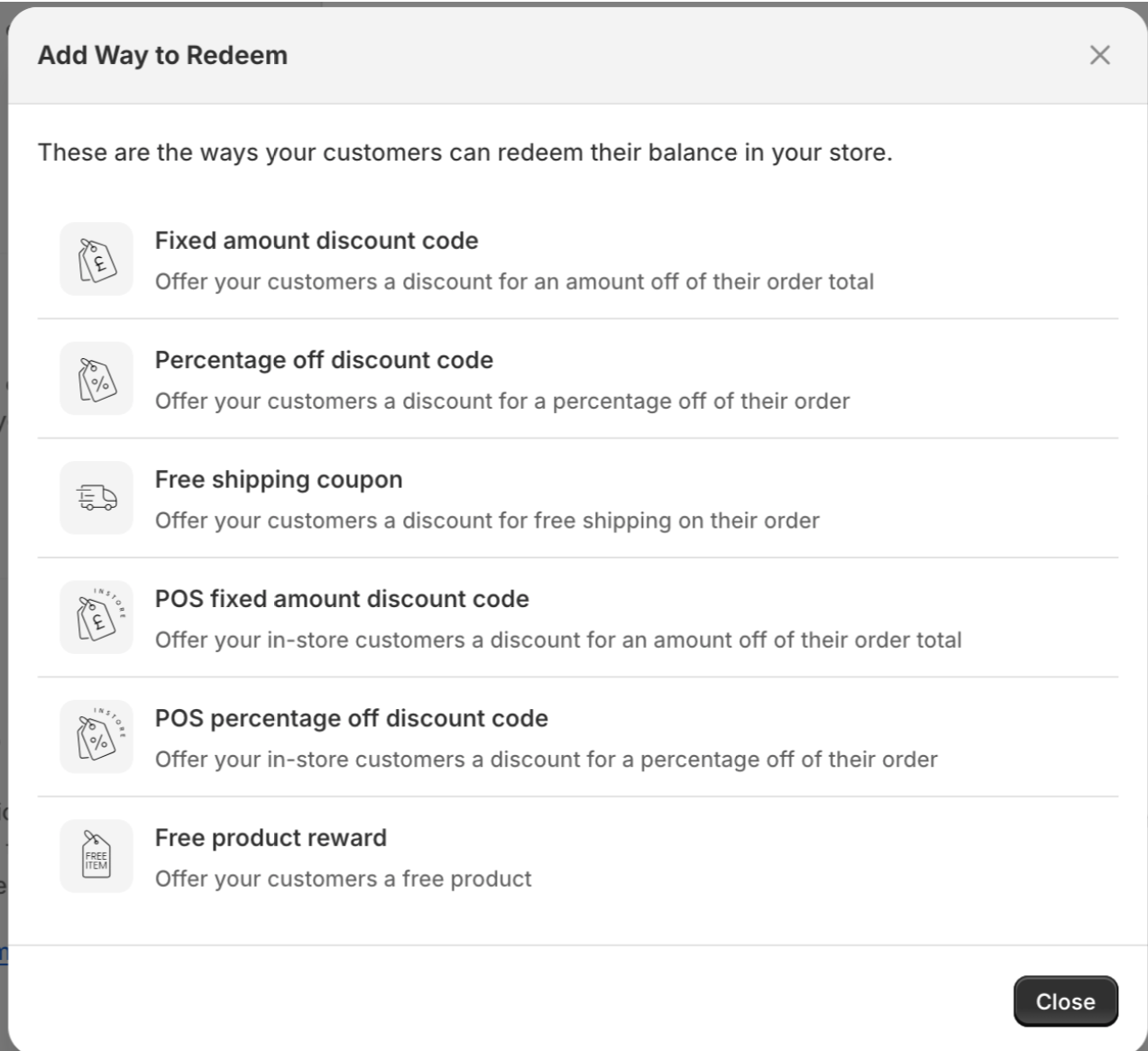
Click on add on the one you want to activate. This will then follow on to a new page to setup the feature.
Lets go through each of the options and how to set them up.
Fixed amount discount
Fixed amount discount is where the customer can exchange their stamps for discount values.
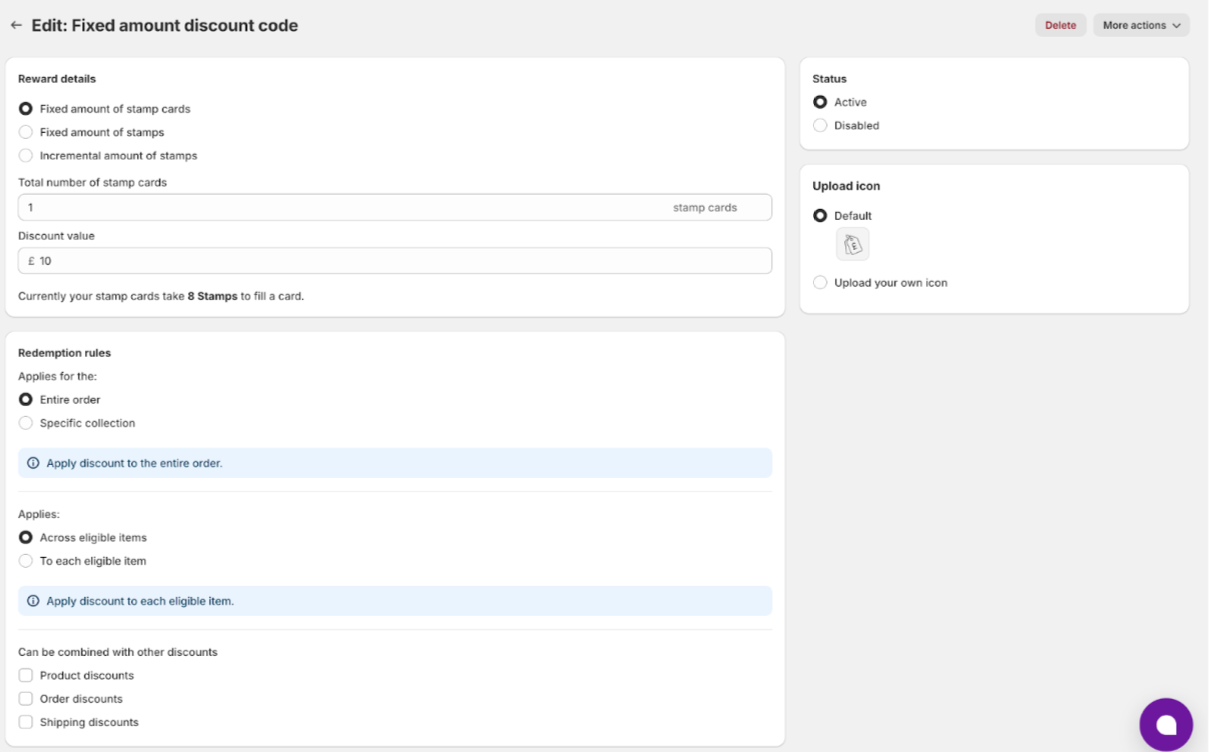
Section 1: Reward details
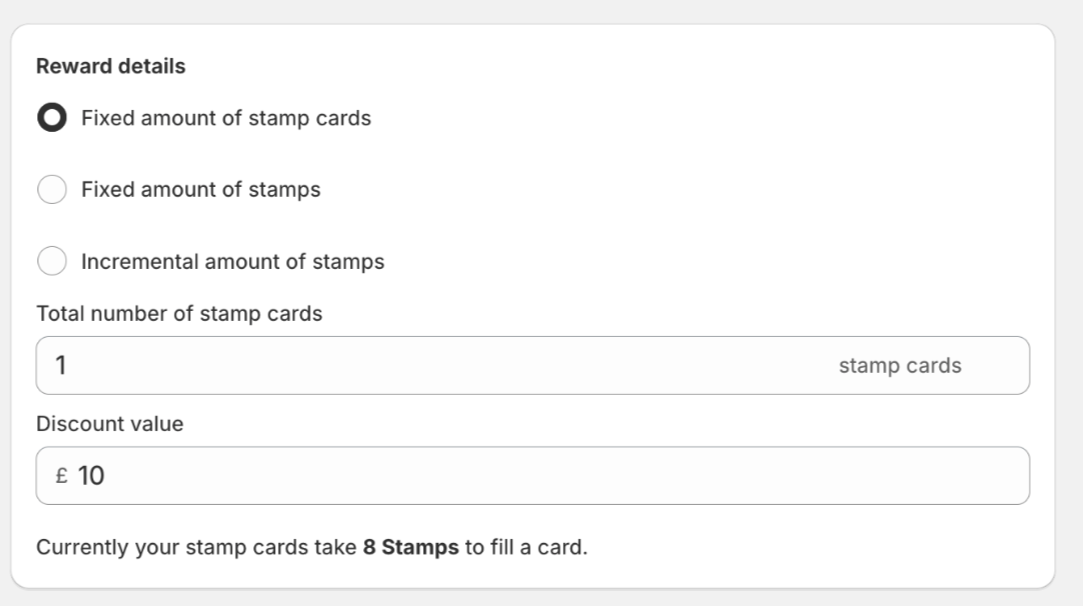
Here you have 3 options, fixed amount of stamp cards ( this is our recommended option) and fixed amount of stamps and incremental amount of stamps
You can alter how many stamp cards the customer requires to access the discount. You also have the ability to alter the value amount.
Section 2: Redemption rules
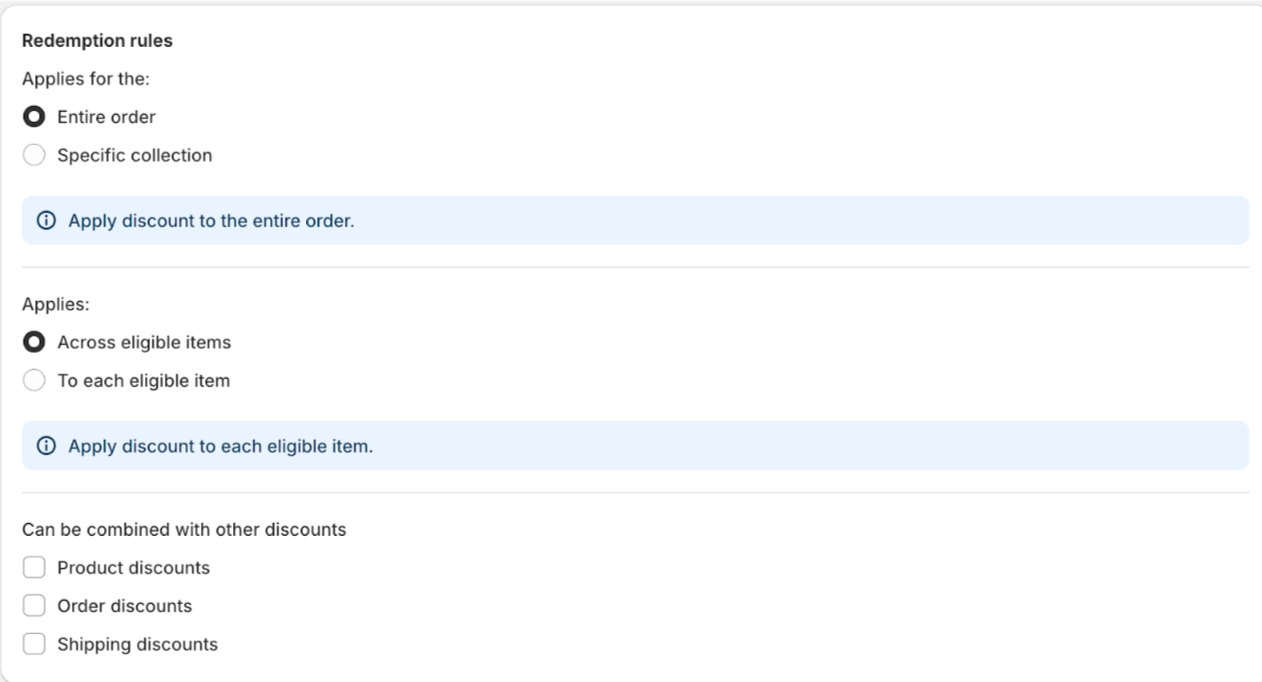
Here is where you choose whether it applies to the entire order, specific collection, across eligible items, to each eligible item and whether it can be combined with the following discounts
-
Product discounts
-
Order discounts
-
Shipping discounts
To learn more about rewards combinations here's a helpful guide explaining everything you need to know about Shopify discount combinations (insert link)
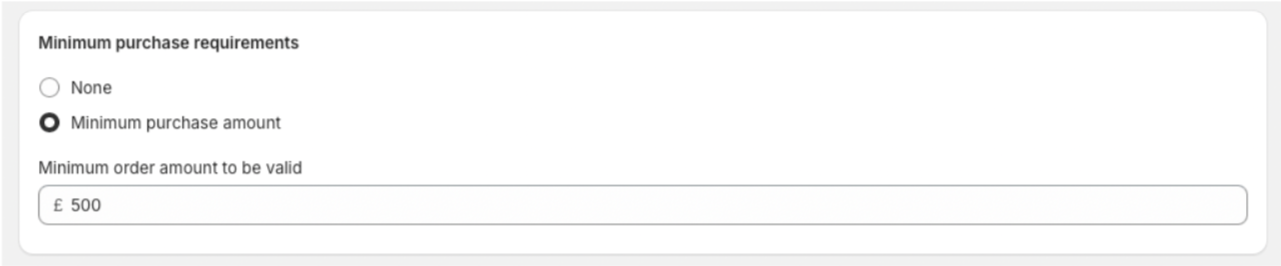
Section 3: Minimum purchase requirements
Here is where you set whether you want customers to spend a certain amount for them to be redeem this reward
Section 4: Prefix code
Here is where you can also add discount code prefix by clicking on add prefix to discount codes a drop down option will appear where you can add your code

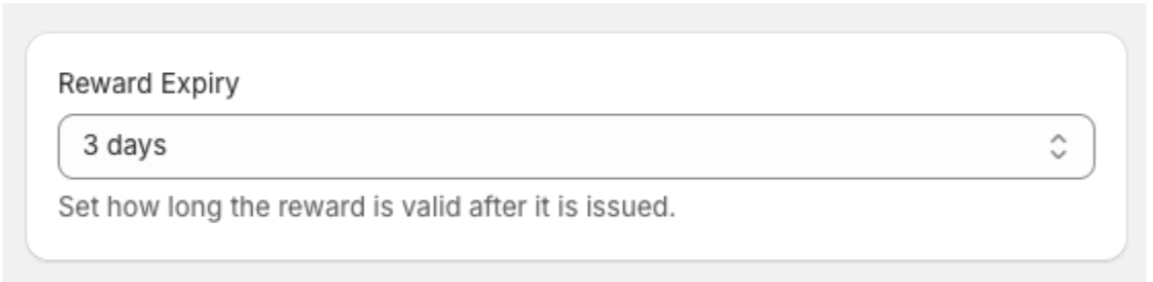
Section 5: Reward expiry
Here is where you can set up an expiry for the reward, ranging from no expiry all the way to 1 year. This expiry time period starts from the moment the customer redeems stamps for the reward
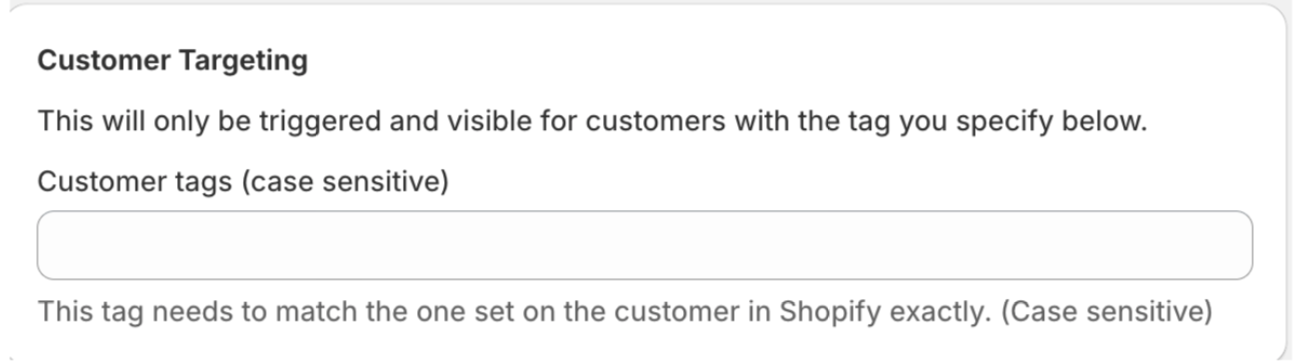
Section 6: Customer targeting
Here you can set up your targeting feature. so customers with certain tags will only have access to this bonus stamp reward. To learn more about customer targeting tags Click here
Section 7: Status
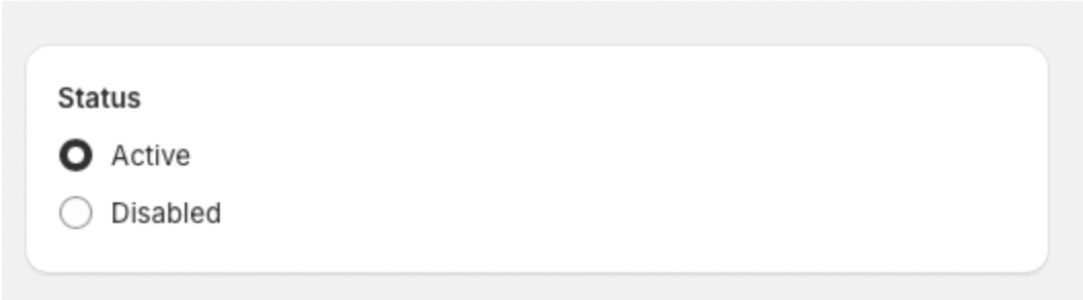
The Status panel on the right of the page shows whether the discount is active or disabled, and underneath confirms the setup you have selected on the left.
Section 8: Upload icon
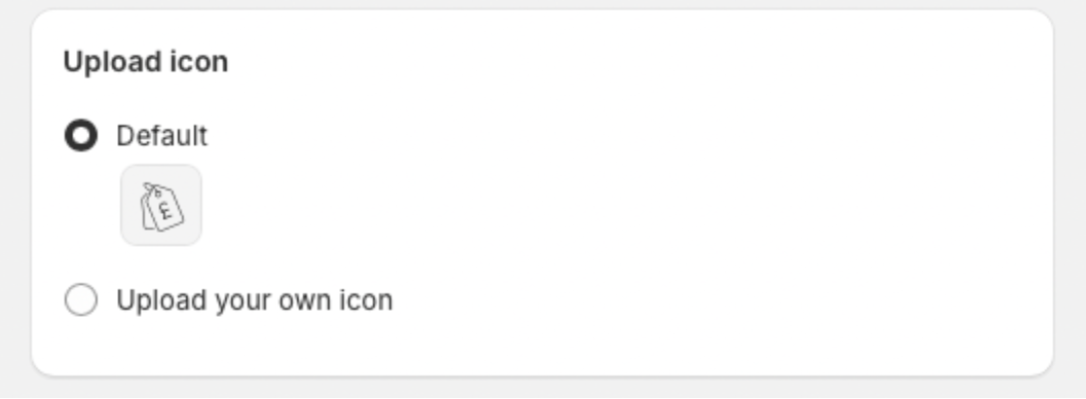
The custom icon section on the right hand side allows you to either select the default icon or the option to upload your own icon.
Once this is all completed, click on the save button at the top of the page
If this is done correctly and working it should appear in the redeem stamps section

Percentage off discount
This is where you can set up a reward based on percentage off.
Section 1: Reward details
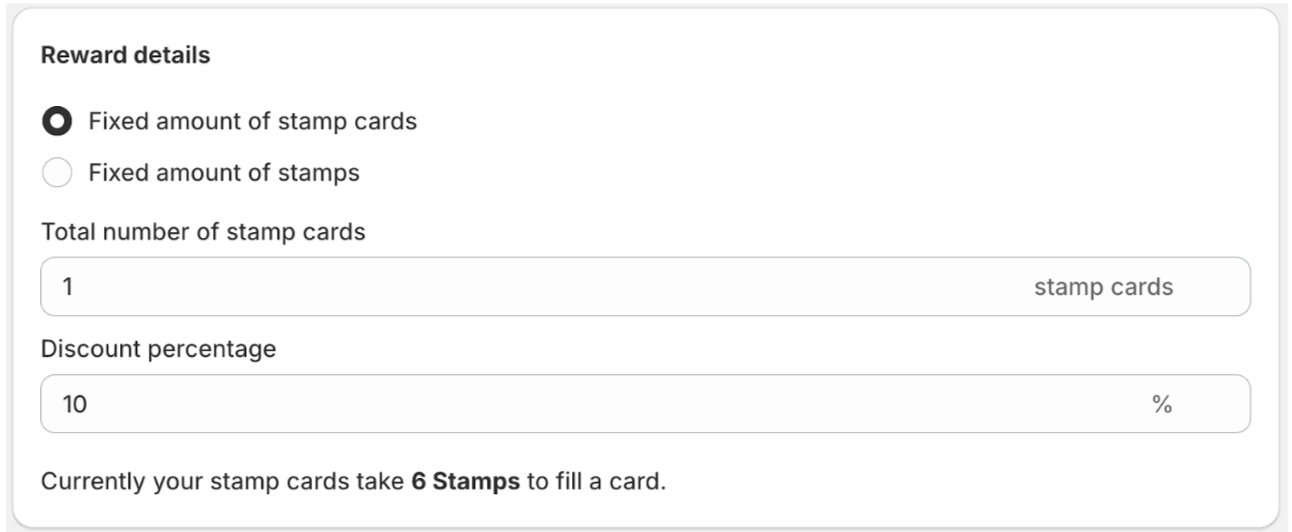
Here is where you can choose how many stamp cards are required to access the discount value
Discount value is done in percentages
Section 2: Minimum purchase requirements
Here is where you set whether you want customers to spend a certain amount for them to be redeem this reward
Section 4: Discount code prefix
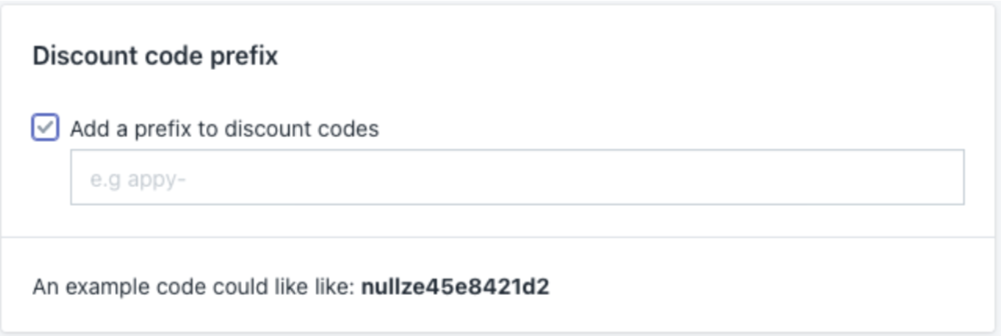
Here is where you can add discount code prefix by clicking on add prefix to discount codes a drop down option will appear where you can add your code
The custom icon section on the right hand side allows you to either select the default icon or the option to upload your own icon.
The Status panel on the right of the page shows whether the discount is active or disabled, and underneath confirms the setup you have selected on the left.
Once this is all filled in, click save at the top of the page.
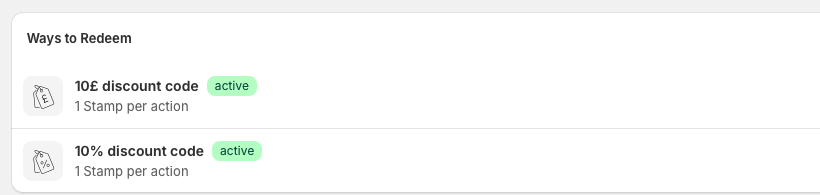
If this is done correctly and working it should appear in the redeem stamps section like so.
Free shipping coupon
Section 1: Reward details
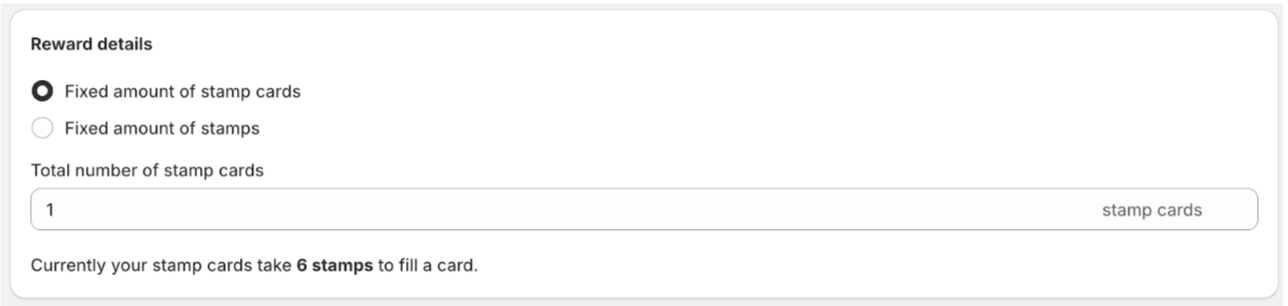
Here you have 2 options, a fixed amount of stamp cards ( this is our recommended option) and a fixed amount of stamps.
You can then add how many stamp cards are required for the customer to access a free shipping coupon.
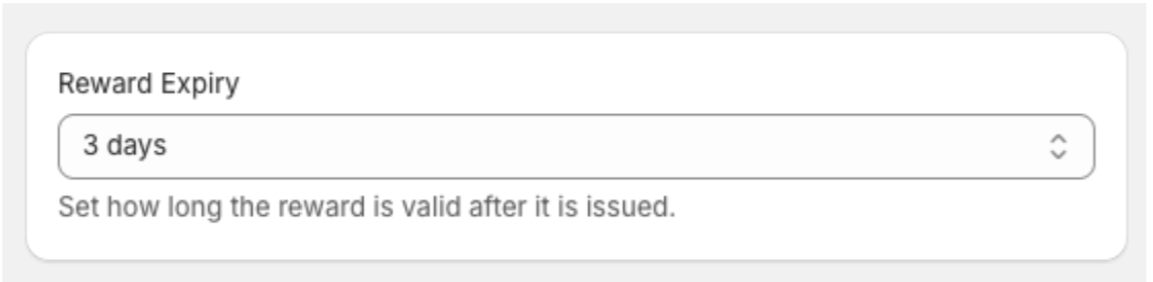
Section 2: Reward Expiry:
Here is where you can set up an expiry for the reward, ranging from no expiry all the way to 1 year. This expiry time period starts from the moment the customer redeems stamps for the reward.
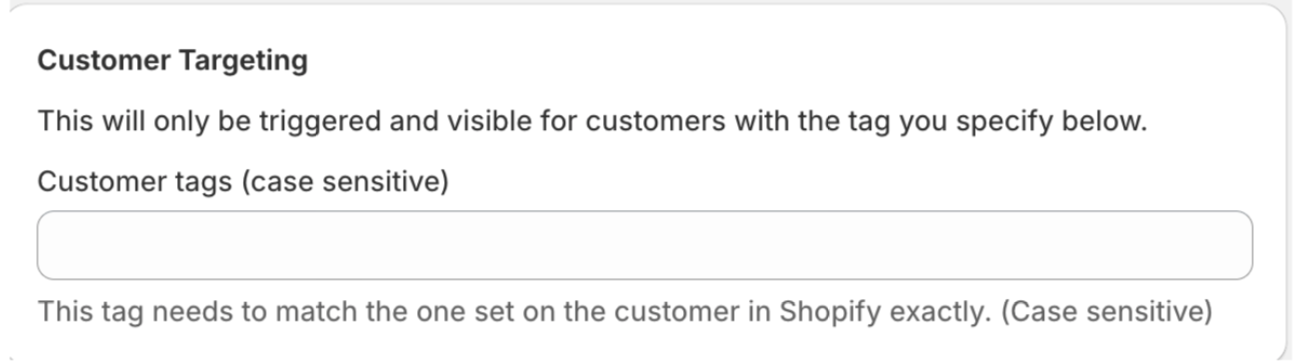
Section 3: Customer targeting
Here you can set up your targeting feature. so customers with certain tags will only have access to this bonus stamp reward. To learn more about customer targeting tags Click here
The custom icon section on the right hand side allows you to either select the default icon or the option to upload your own icon.
The Status panel on the right of the page shows whether the discount is active or disabled, and underneath confirms the setup you have selected on the left.
Once this is all filled in, click on save button at the top
If this is done correctly and working it should appear in the redeem stamps section like so
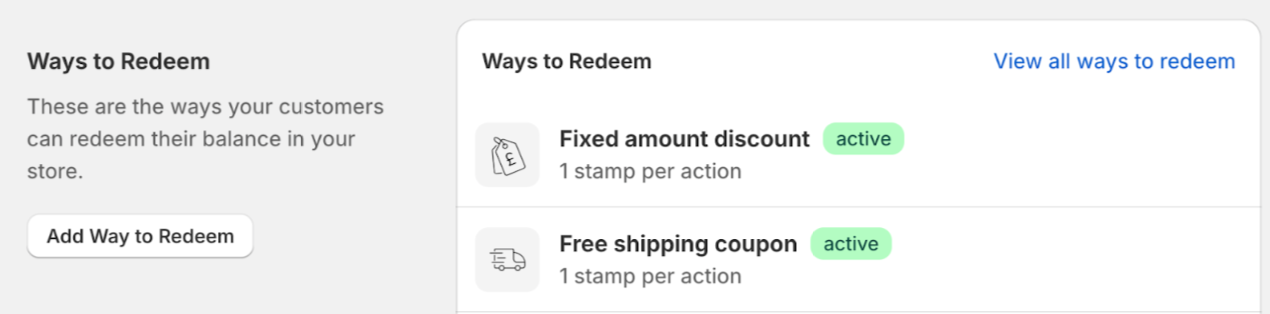
POS Fixed amount discount
This is where you can set up a POS fixed amount discount
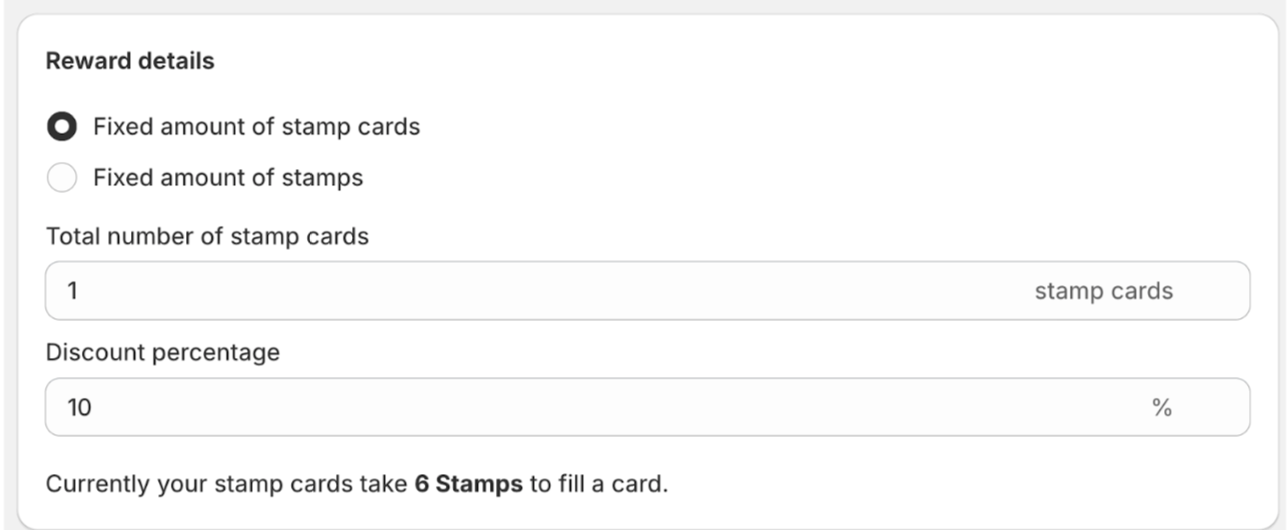
Section 1: Reward details.
Here you choose between fixed amount of stamp cards or fixed amount of stamps and the discount value of the reward.
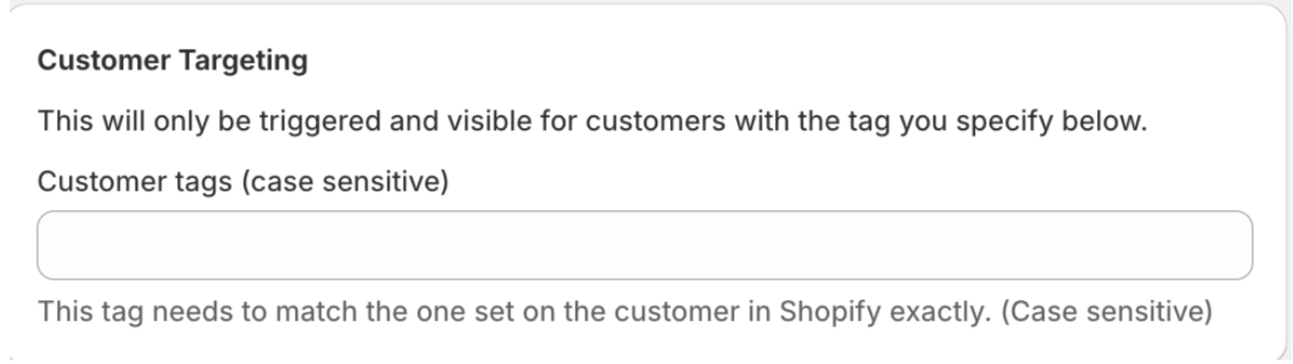
Section 2: Customer targeting
Here you can set up your targeting feature. so customers with certain tags will only have access to this bonus stamp reward. To learn more about customer targeting tags Click here
The custom icon section on the right hand side allows you to either select the default icon or the option to upload your own icon.
The Status panel on the right of the page shows whether the discount is active or disabled, and underneath confirms the setup you have selected on the left.
Once this is all filled in, click on the green create button at the top of the page
If this is done correctly and working it should appear in the redeem stamps section like so
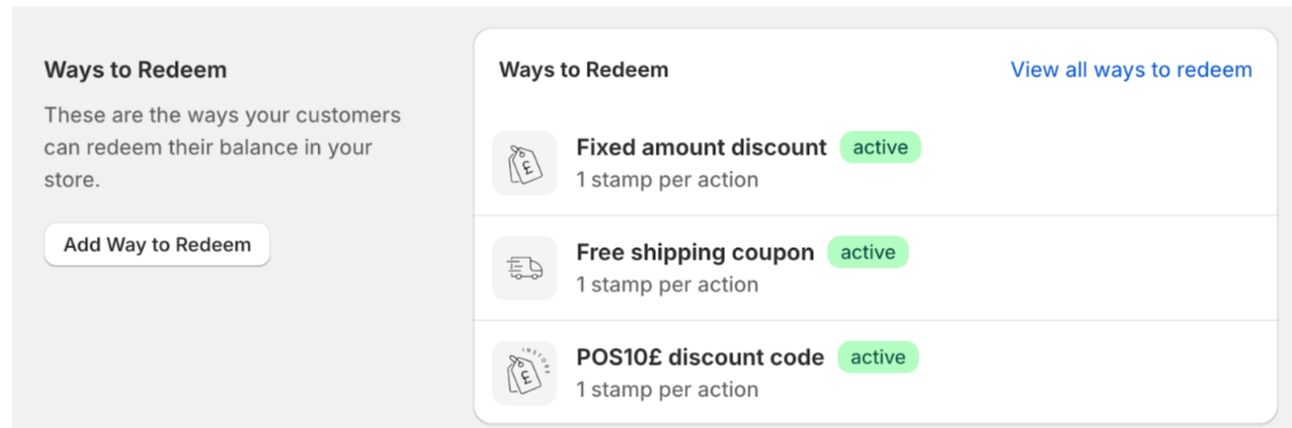
POS percentage off discount
This is where you can set up a POS percentage off discount
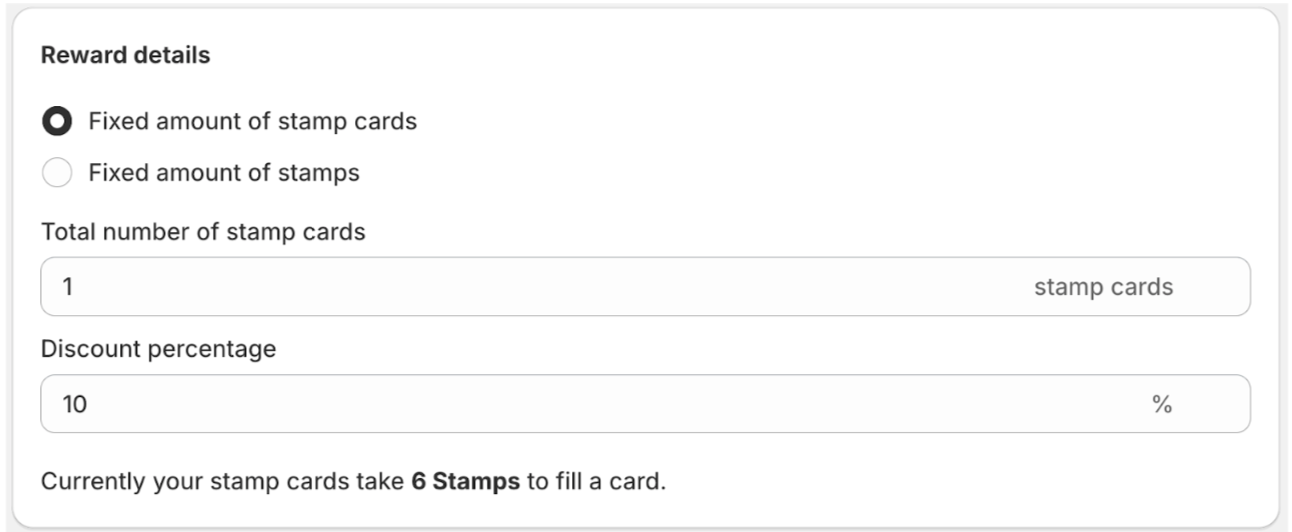
Section 1: Reward details.
Here you choose between fixed amount of stamp cards or fixed amount of stamps and the discount value of the reward.
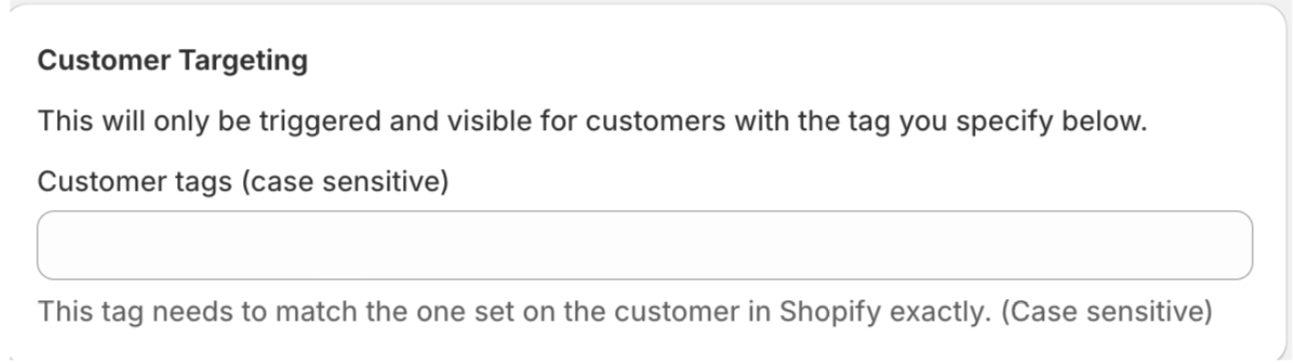
Section 2: Customer targeting
Here you can set up your targeting feature. so customers with certain tags will only have access to this bonus stamp reward. To learn more about customer targeting tags Click here
The custom icon section on the right hand side allows you to either select the default icon or the option to upload your own icon.
The Status panel on the right of the page shows whether the discount is active or disabled, and underneath confirms the setup you have selected on the left.
Once this is all filled in, click on the save button at the top of the page
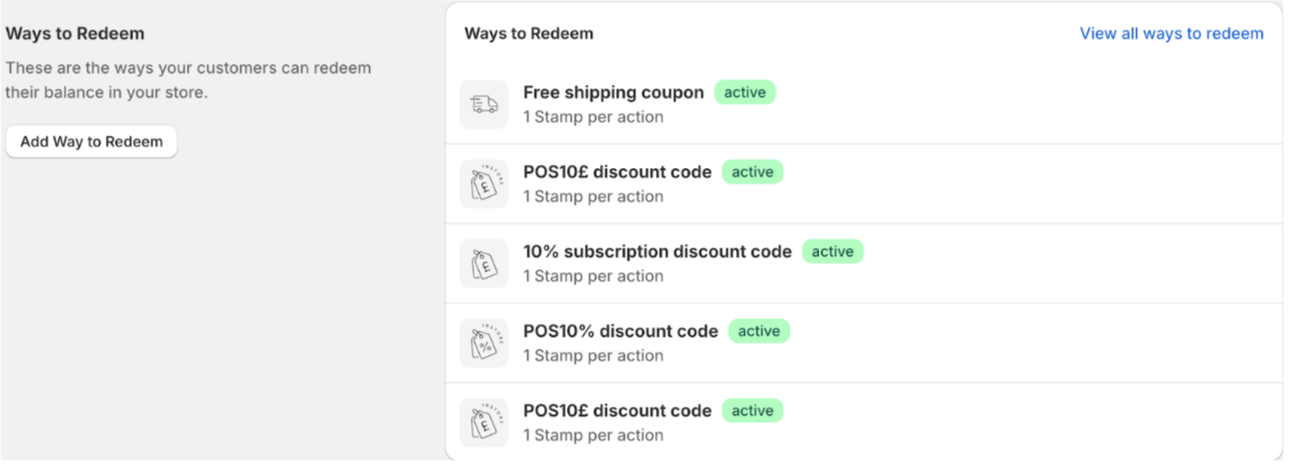
If this is done correctly and working it should appear in the redeem stamps section like so
Free product
This is where you can add a free product as a reward for customers who have the required amount of stamp cards
Section 1: Reward details
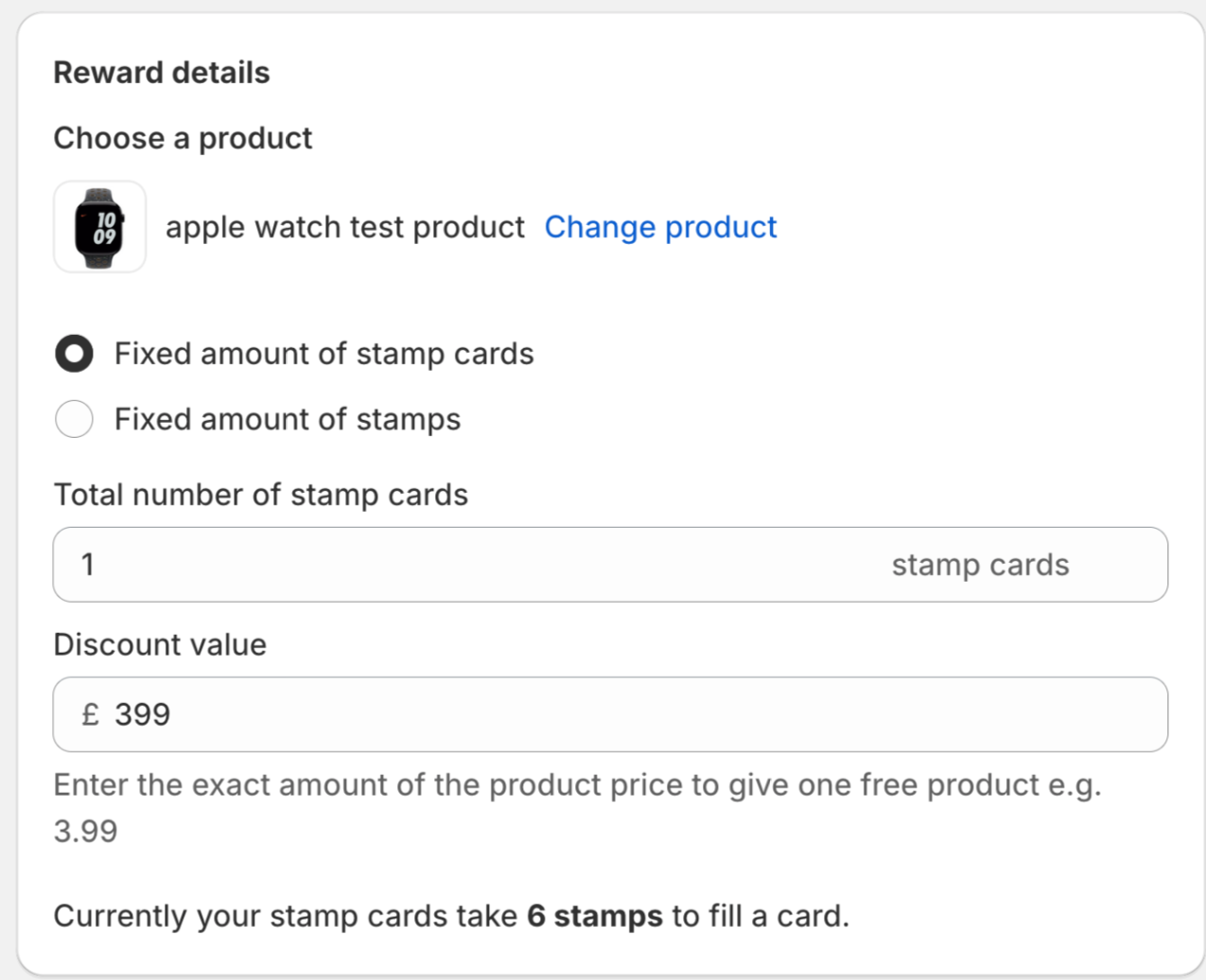
Here you can choose the product you'd like to give as a free product, how many stamps to redeem and discount value
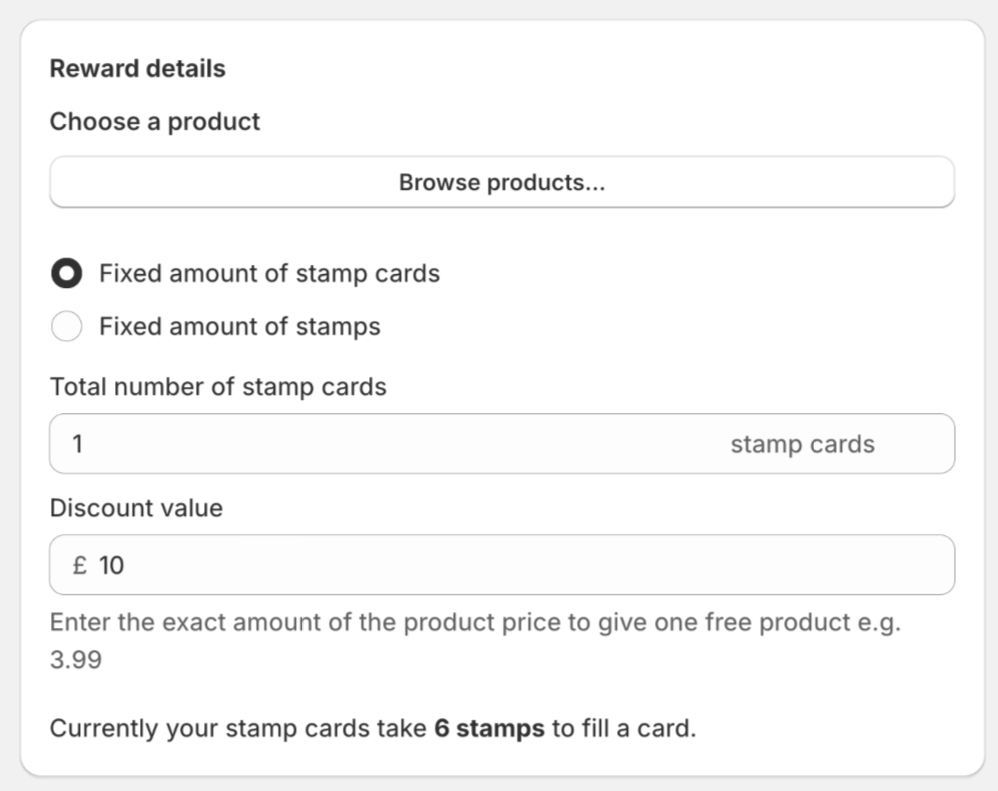
Click on Browse product button
A modal will pop up where you can search and the product you wish to give away
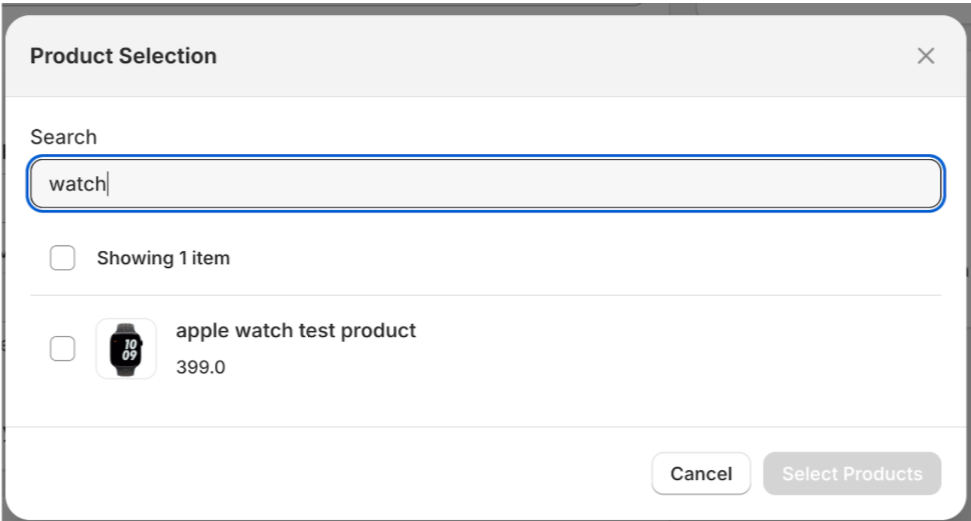
Please note, you will need to add the exact value of the product in the discount value section
It should look like this if done correctly.
The custom icon section on the right hand side allows you to either select the default icon or the option to upload your own icon.
The Status panel on the right of the page shows whether the discount is active or disabled, and underneath confirms the setup you have selected on the left.
Once this is all filled in, click on the green create button at the top of the page
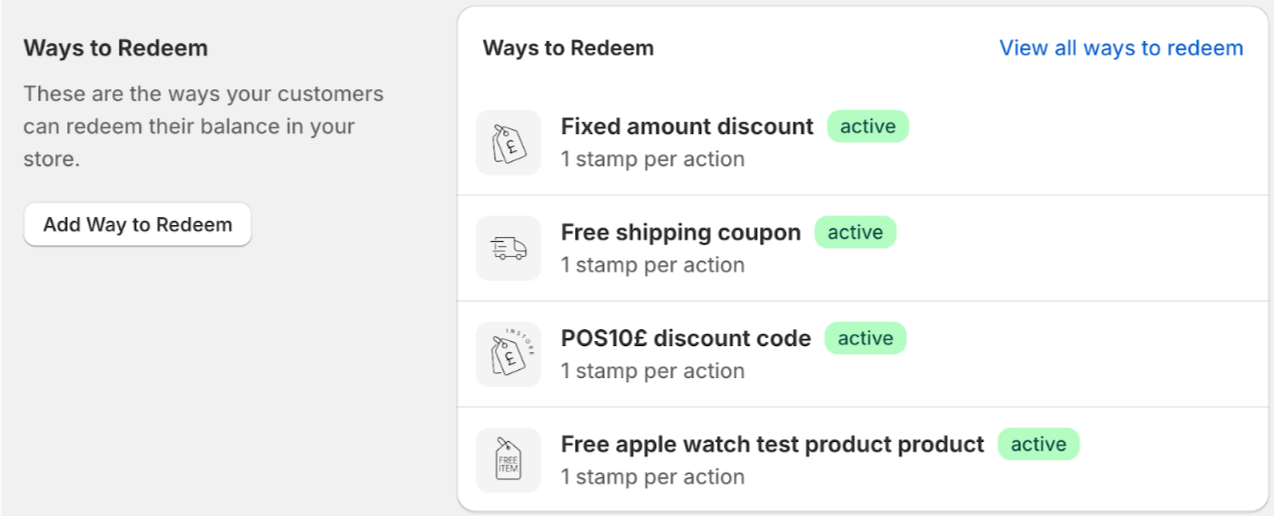
If this is done correctly and working it should appear in the redeem stamps section like so
ReCharge percentage off discount
This is where you can set up a reward for your recharge program
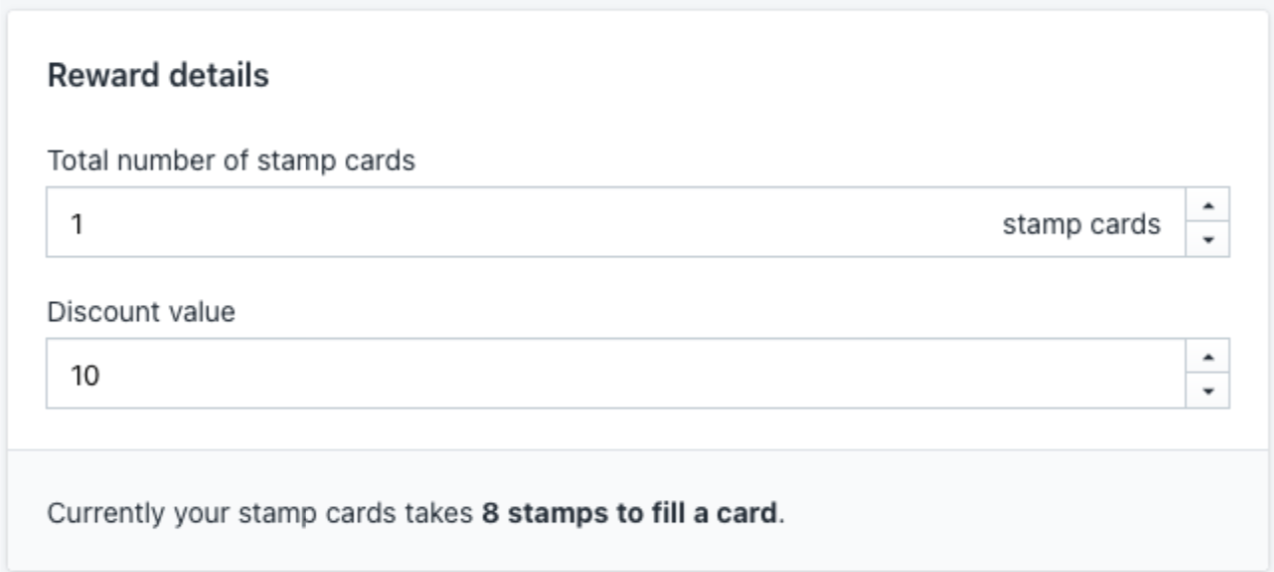
Section 1: Reward details
Section 2: Redemption rules
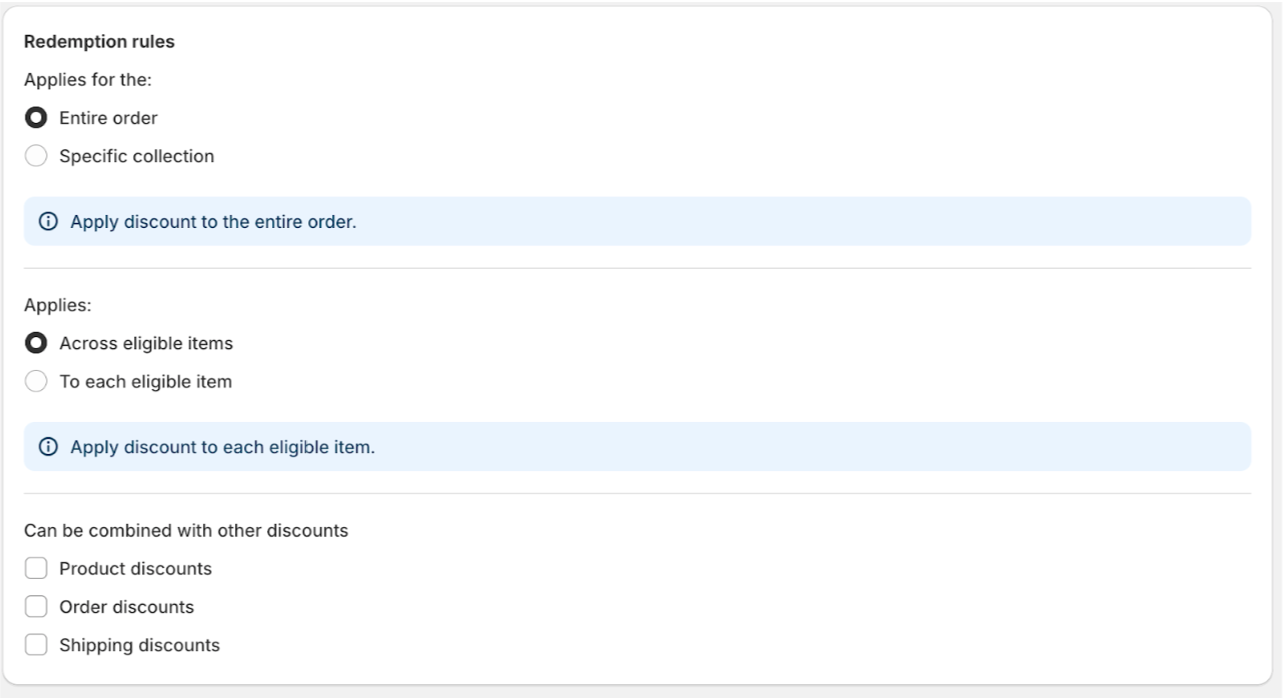
Here is where you choose whether it applies to the entire order, specific collection, across eligible items, to each eligible item and whether it can be combined with the following discounts
-
Product discounts
-
Order discounts
-
Shipping discounts
To learn more about rewards combinations here's a helpful guide explaining everything you need to know about Shopify discount combinations (insert link)
Section 3: Prefix code
You can also add discount code prefix by clicking on add prefix to discount codes a drop down option will appear where you can add your code

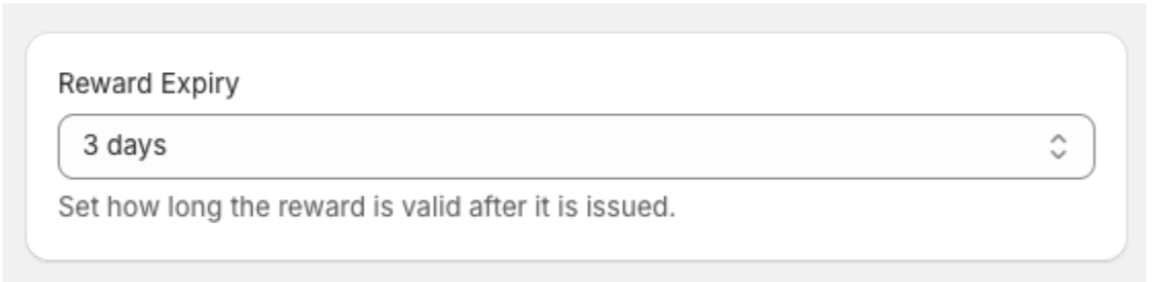
Section 4: Reward expiry
Here is where you can set up an expiry for the reward, ranging from no expiry all the way to 1 year. This expiry time period starts from the moment the customer redeems stamps for the reward
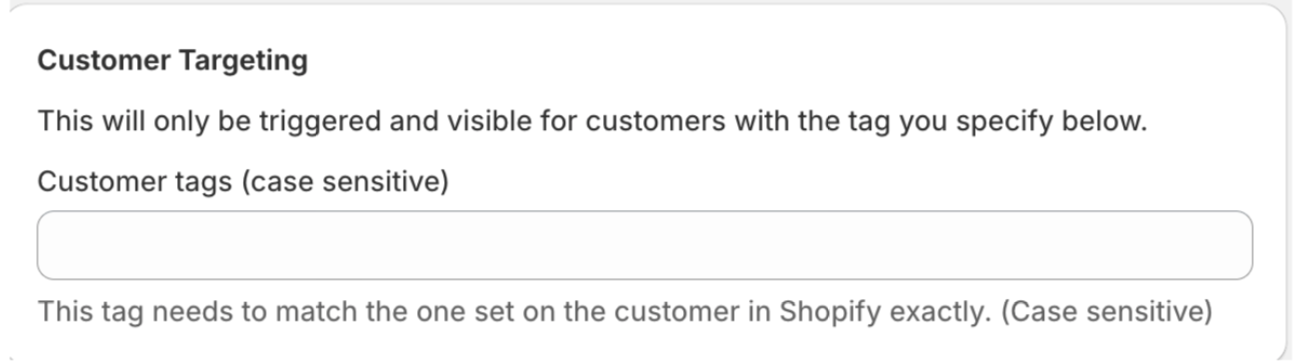
Section 5: customer targeting
Here you can set up your targeting feature. so customers with certain tags will only have access to this bonus stamp reward. To learn more about customer targeting tags Click here
The custom icon section on the right hand side allows you to either select the default icon or the option to upload your own icon.
The Status panel on the right of the page shows whether the discount is active or disabled, and underneath confirms the setup you have selected on the left.
Once this is all filled in, click on the save button at the top of the page
If this is done correctly and working it should appear in the redeem stamps section like so