Order Milestones let you reward customers for how many orders they place, separately from your stamp card. Instead of counting stamps earned on spend, this counts the orders themselves. When a customer reaches a target you set, for example their 5th order, the matching reward is granted to them automatically.
A classic example is a coffee shop running "every 10th order, a free coffee". You can also set tiered targets like a reward at 2 orders, another at 5, and another at 10.
Order Milestones run alongside your stamp card, not instead of it. You can run both together, or run Order Milestones on their own without a stamp card at all.
Note: Order Milestones are available on paid plans only. If you are on the free plan you will see an upgrade prompt where the setting normally appears.
How it works
Every qualifying order a customer places adds 1 to their order count. When their count reaches a target you have set, the matching reward is granted to them straight away. They do not need to redeem anything.
If an order is refunded or cancelled, the count drops back down by 1, the same way a refund removes earned stamps. A reward that has already been granted is not taken back if a later refund drops the count below the target. The customer would need to reach the target again to earn it a second time on a repeating milestone.
Order Milestone rewards are earned by order count only. They can never be bought with stamps, and stamp rewards are never granted by order count. The two are kept completely separate.
Setting it up
There are three parts to getting Order Milestones working:
-
Turn on Order Milestones for your store.
-
Create an order-count rule that sets the targets and whether they repeat.
-
Create the rewards and attach them to that rule.
Once those are in place you can also choose how it looks in the customer widget.
Step 1: Turn on Order Milestones
Head to your program settings and find the Order Milestones setting. Switch it to Active.

This is the master switch for the whole feature. While it is off, no orders are counted, even if you already have milestones set up.
You will also see a helper message telling you how many milestones you currently have set up. If it says you have none yet, that is expected at this stage, carry on to Step 2.
Step 2: Create an order-count rule
The rule is where you decide how the milestones behave. Go to Ways to Earn and add order milestone activity.
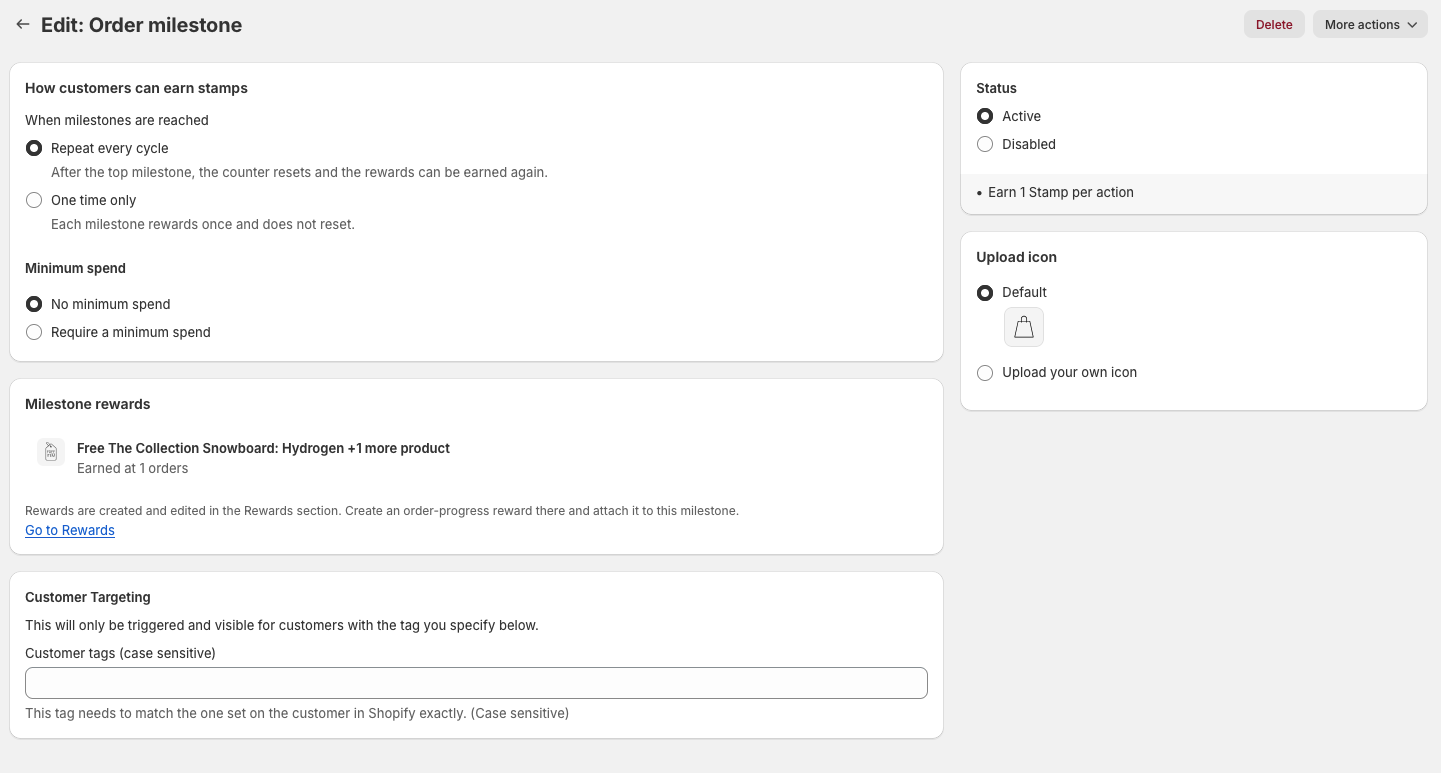
When milestones are reached: This decides what happens once a customer hits a target.
Repeat every cycle: After the customer reaches the top target, their counter resets and they can earn the rewards all over again. This is the one to pick for "every 10th order" style programs.
One time only: Each target rewards once and does not reset. This is the one to pick for a "reward at 2, 5 and 10 orders" style program where each is a one-off.

Minimum spend (optional): You can require a minimum order value for an order to count. This is handy to stop very small orders from counting towards milestones. It is worked out against the order subtotal after any excluded products. Leave it off if any order should count.
Save the rule.
Step 3: Create the milestone rewards
Each target is a reward attached to the rule you just made. Go to your Rewards and create a new reward.
Set the Reward type to Order progress (earned by number of orders).
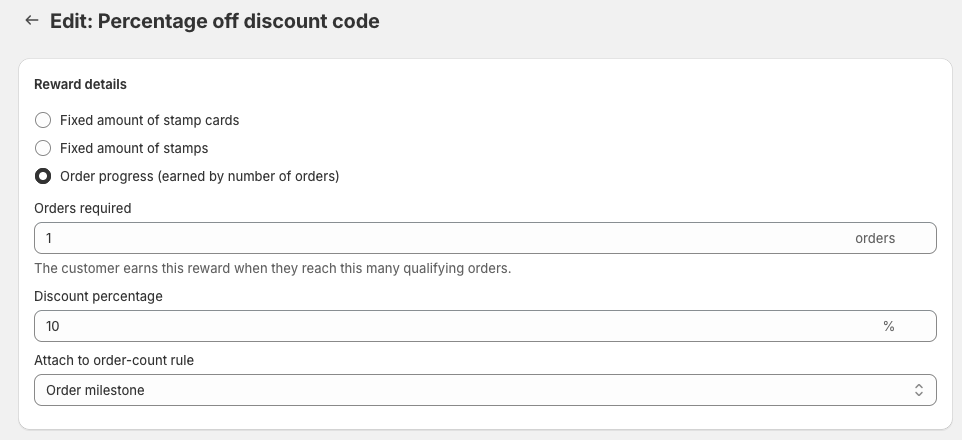
Then set:
Orders required: The target for this reward, for example 5. The customer earns this reward when they reach this many qualifying orders.
Attach to order-count rule: Pick the rule you created in Step 2.
Customer gets: The discount to grant when they hit the target. This can be a percentage off, a fixed amount off, a free product, or free shipping, and it works exactly like any other reward.
Save the reward, then repeat for each target you want. For a "2, 5, 10" program you would create three rewards, one at each number, all attached to the same rule.
Tip: For a repeating "every 10th order" program you only need one reward, set to 10 orders, on a rule set to Repeat every cycle.
Telling your stamp and milestone rewards apart
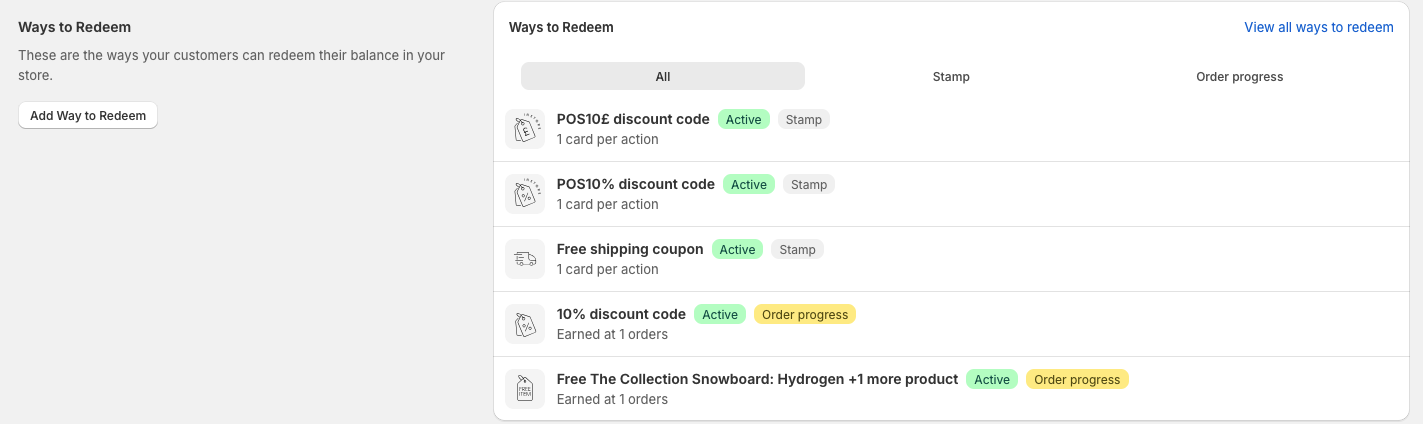
Once you have order-progress rewards, your rewards list groups them and labels them so you can see at a glance which rewards are stamp-based and which are order milestones.
Choosing how it looks to customers
By default the customer's order progress shows in the loyalty widget. You control this in your widget settings.
Show order progress: Turns the display on or off in the widget. This is separate from the master switch in Step 1. The master switch controls counting, while this controls whether customers actually see the progress.
Order progress display style: Choose how the progress appears:
Progress bar: A simple bar showing how close the customer is to their next reward, with a marker for each milestone.
Stamp card: Reuses the familiar stamp-card look, with a small reward icon above the slot where each milestone lands.
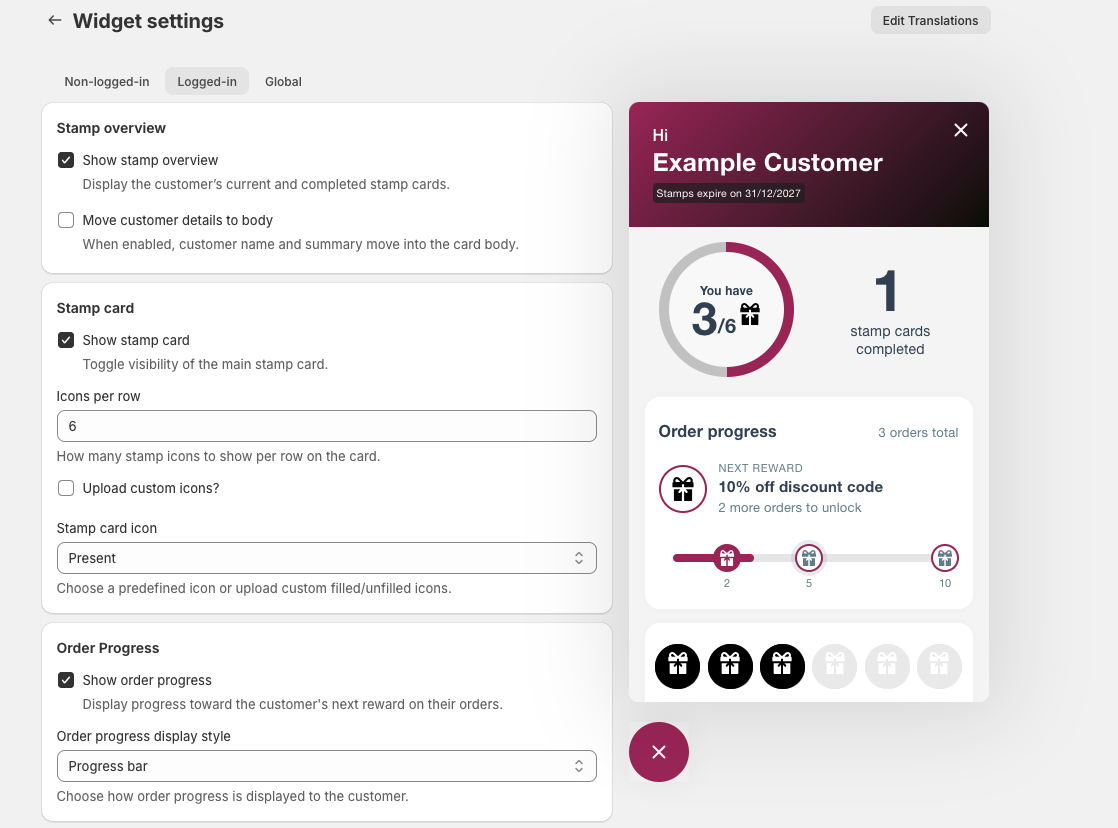
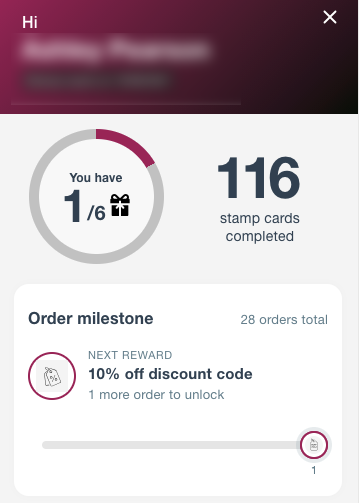
Because the two settings are independent, a store can show the stamp card only, order progress only, or both together.
Order milestone order cancellation
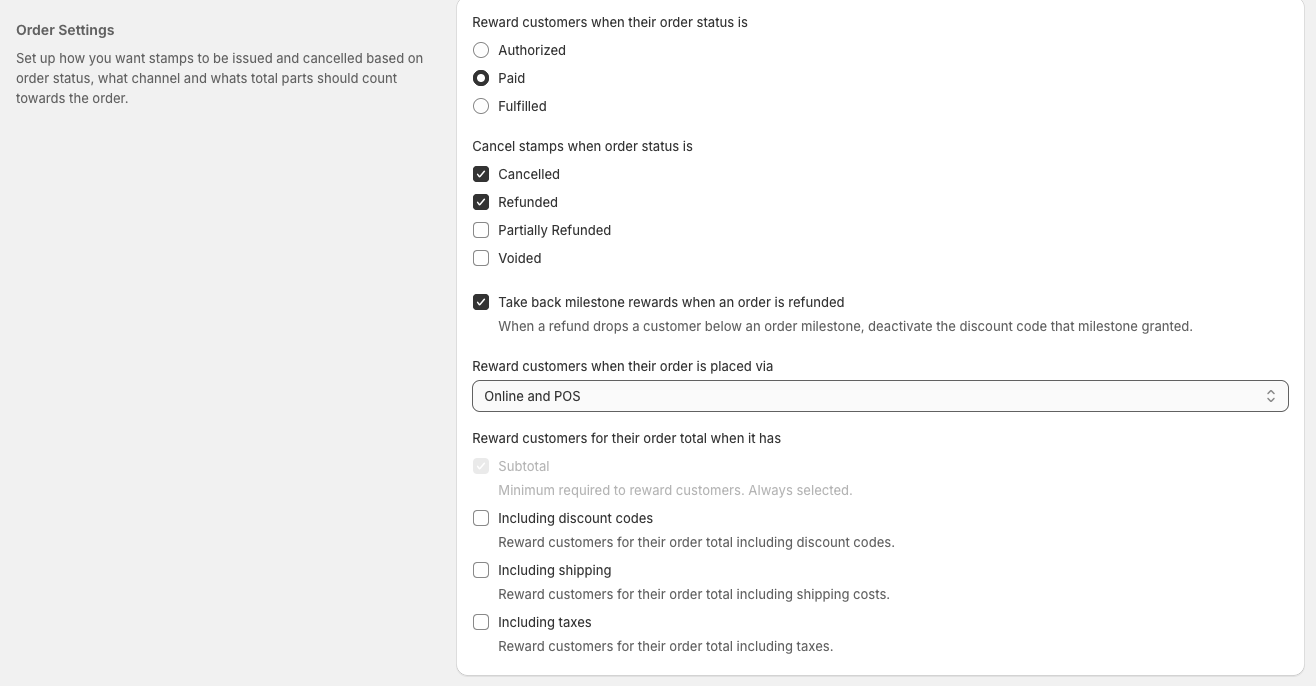
In Order Settings, you can configure your Order Milestone to revoke milestone rewards if an order is refunded. If a refund causes a customer's completed order count to fall below a milestone, the reward associated with that milestone will be cancelled and the discount code will no longer be valid.
This is enabled by default. If you want your customers to keep their rewards even if their order is refunded, disable this setting by unchecking the box.
Common questions
Do customers have to claim the reward?
No. When they reach the target the reward is granted automatically and appears in their account.
What happens on a refund?
The order count drops by 1, mirroring how a refund removes earned stamps. Depending on whether you have the take back milestones reward option active will determine whether the reward is crawled back.
Can a single order count towards both a stamp reward and an order milestone?
Yes. If an order matches both a stamp rule and an order-count rule, it earns a stamp and adds 1 to the order count. Your rule setup decides this.
Can I run Order Milestones without a stamp card?
Yes. Turn your stamp program off and Order Milestones on. Orders are still counted and milestones still grant.
Can an Order Milestone reward be a POS-only reward?
No. POS-only rewards are redeemed at the till and cannot be used as milestone rewards.
I turned on the master switch but nothing happens.
Check that you have at least one order-count rule, at least one order-progress reward attached to that rule, and that the master Order Milestones setting is set to Active.
It is not showing in the widget.
The master switch in Step 1 controls counting, and the Show order progress widget setting controls whether customers see it. Make sure both are switched on.