Overview
The Non-Logged In settings on the Widget Settings page allow you to customise the experience for visitors who are not logged into their account on your store. This section controls what information and options are displayed in the loyalty widget for new or returning customers who have not yet logged in, helping you engage and encourage them to join the loyalty program.
Features and configuration
From the dashboard head over to > On-site Content > Widget > non-logged in
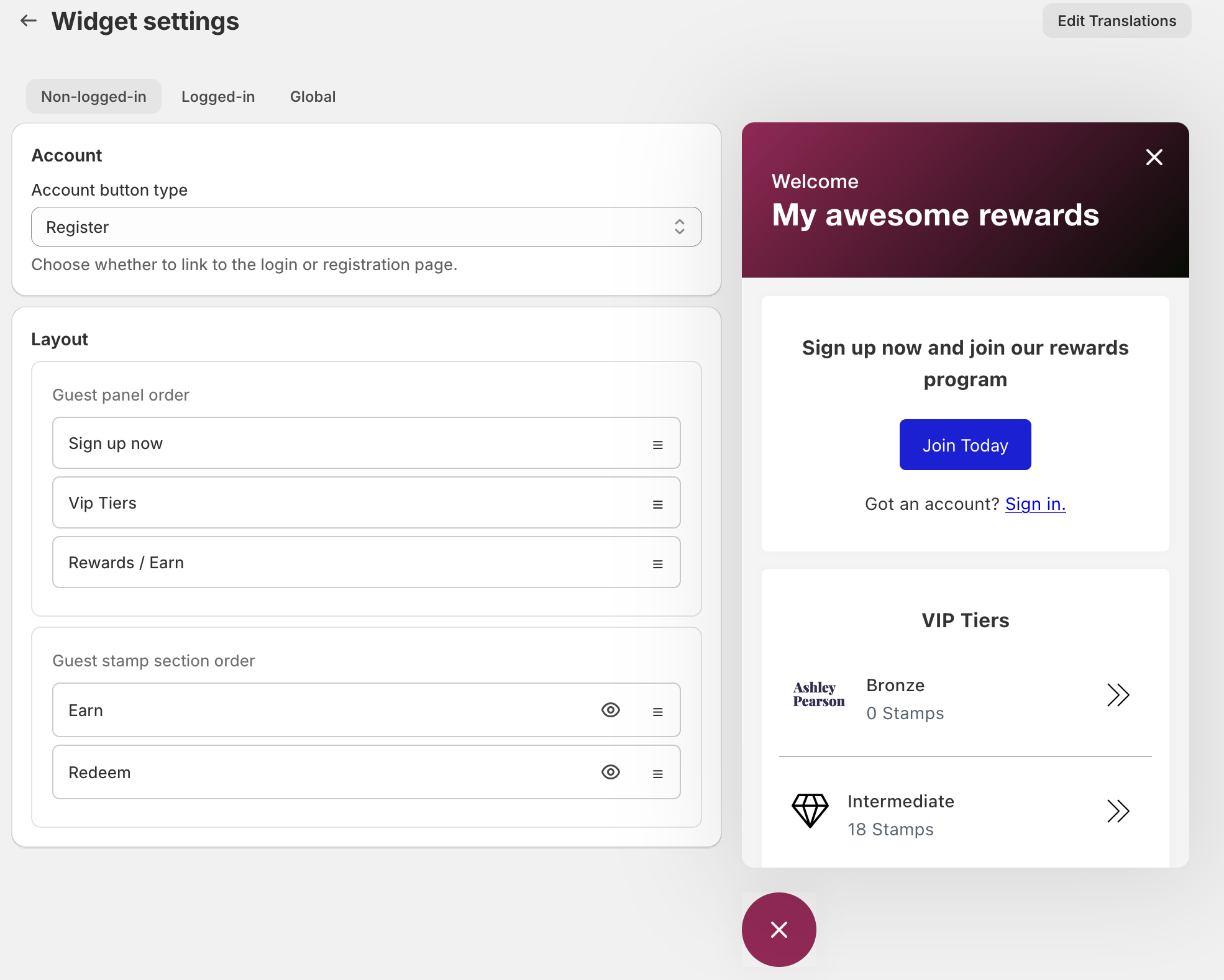
Account
- Choose whether the account link directs customers to the Login page or the Create Account page.
Layout
-
Guest panel order: You can rearrange the different categories by simply dragging and dropping each tile into the desired position.
Guest stamp section order: You can change the order in which these sections appear by dragging and dropping them. You can also choose to hide any of these sections from the widget if you do not want them to be displayed.
-
Use the widget preview pane to see your changes in real time.
-
Save Layout: Click Save to apply your changes and update the widget preview.
Tips for optimising Non-logged In settings
-
Create clear and inviting welcome messages that encourage visitors to join your loyalty program.
-
Use compelling calls to action to increase sign-ups and engagement.
-
Match the widget styling to your brand for a consistent customer experience.
-
Test the widget appearance on various devices to ensure it looks great everywhere