Create your own dedicated loyalty page that allows you to promote your program to new customers while at the same time allow existing customers who are logged in can:
-
View their stamp balance
-
Get their unused rewards
-
Redeem their stamp cards for new rewards
-
Check in on their VIP tier status
-
and more.
How to set up your loyalty landing page
-
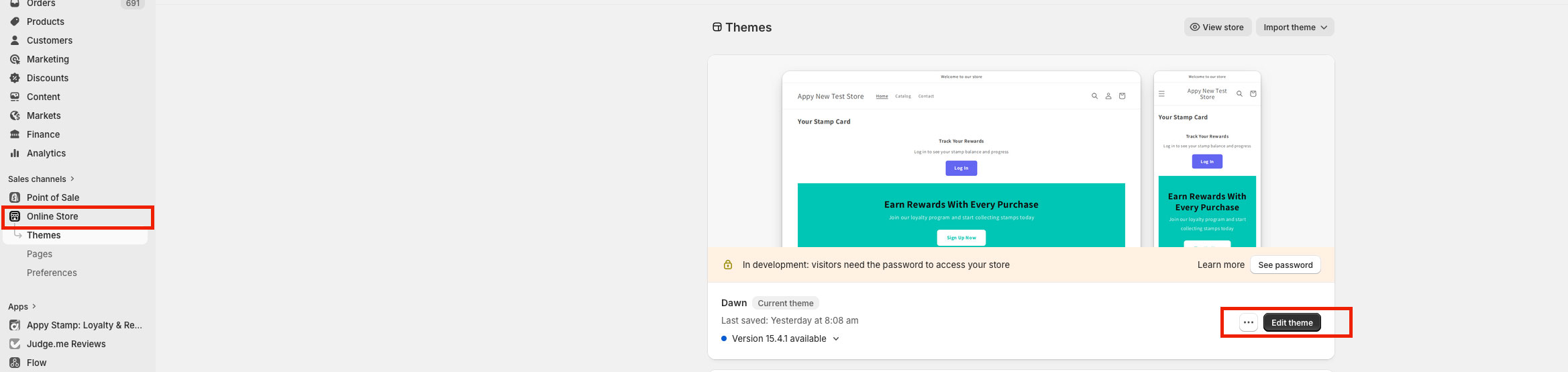
Go to online stores, then choose Theme.
-
Click on the customise button in your current theme.
-
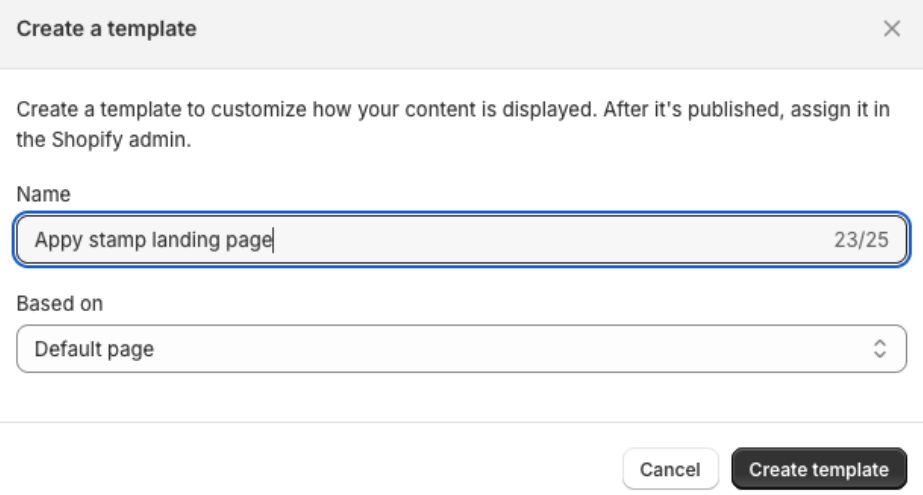
Click on pages at the top, then create template.
-
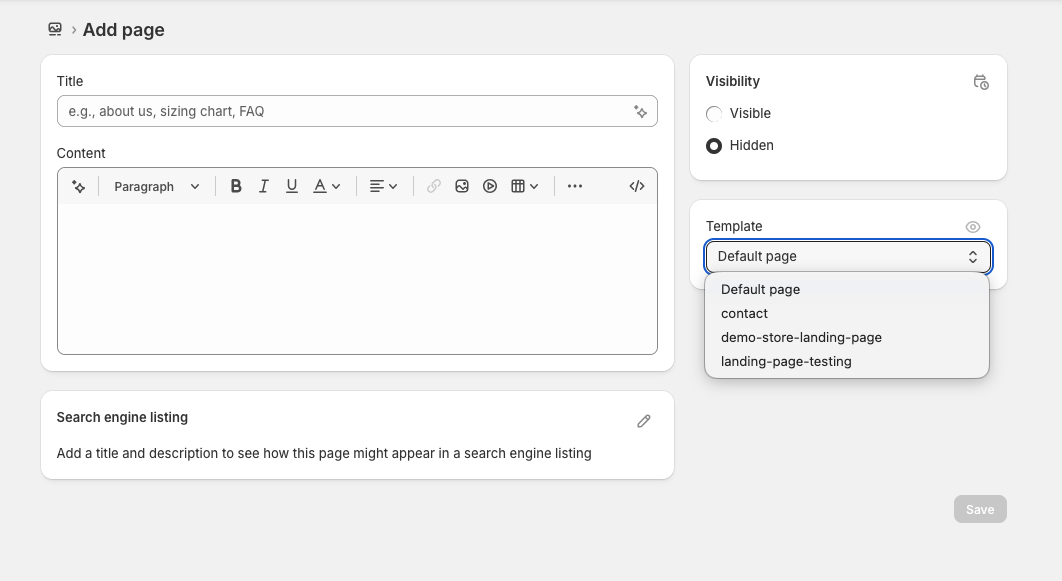
Once you’ve created the page, go to pages > add page.

-
Select your template that you created earlier.
-
That's it, you can now use the theme editor again to change and update your loyalty page.
Adding loyalty page to website menu
Once your page is built, time to add it to the menu.
-
In Shopify menu go to content > menus.
-
Main menu
-
Add menu item.
-
Click link search and a drop down menu will popup.
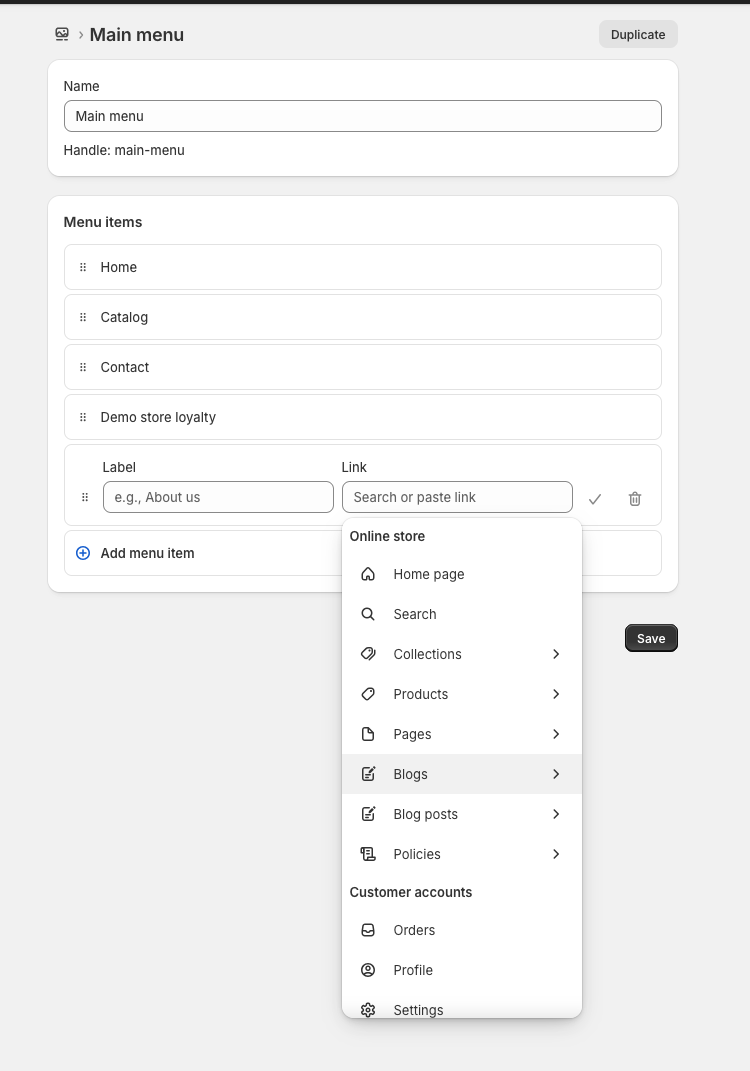
Go to pages and then select your loyalty page.
-
Click save.
-
Building your loyalty page layout
Now that you’ve created the landing page template and added it to your store menu, you can start adding in your loyalty page features.
-
In the side menu go to online store > edit theme.
-
At the top, click the drop down menu for your pages > pages > your loyalty page.
-
On the left hand side, in the template section click on add block > apps.
-
You can then click and add the different sections you wish to add to your loyalty page.
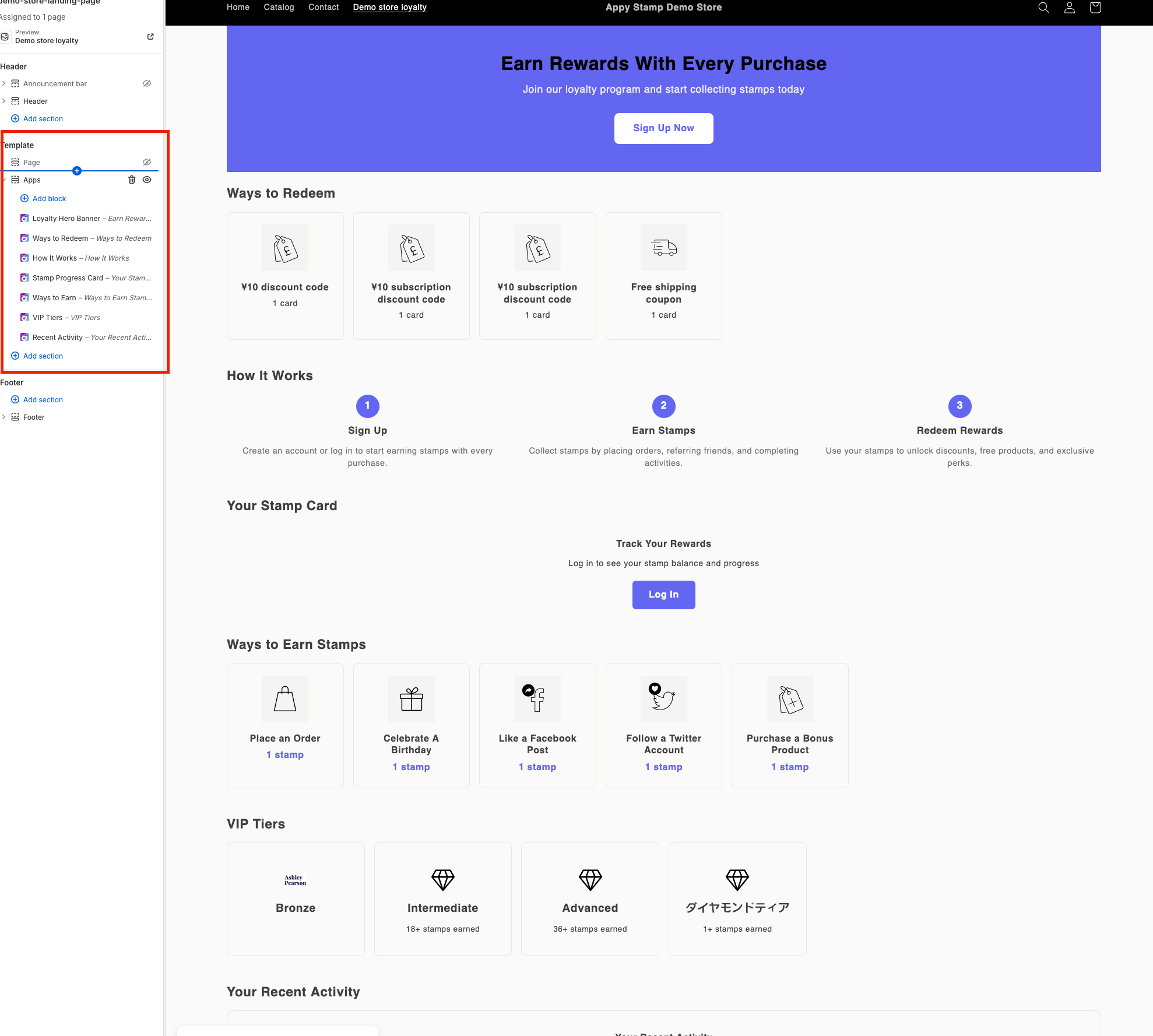
Loyalty Hero Banner
This is your main banner, setting the tone for your loyalty page.
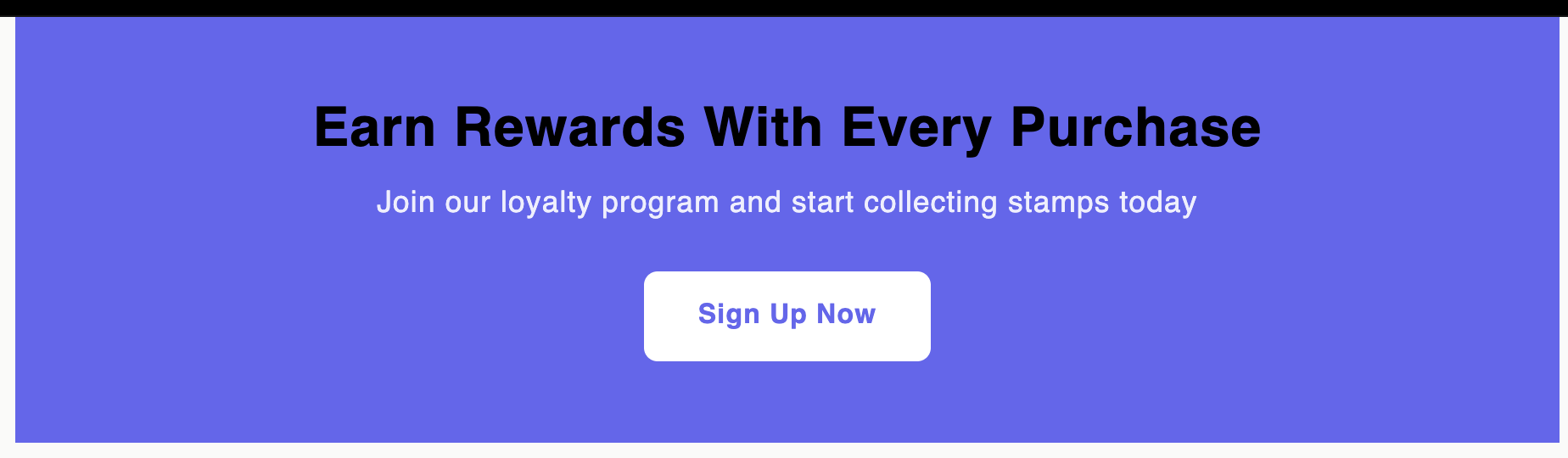
How It Works
This explains to your customers, in three steps, how your program works.
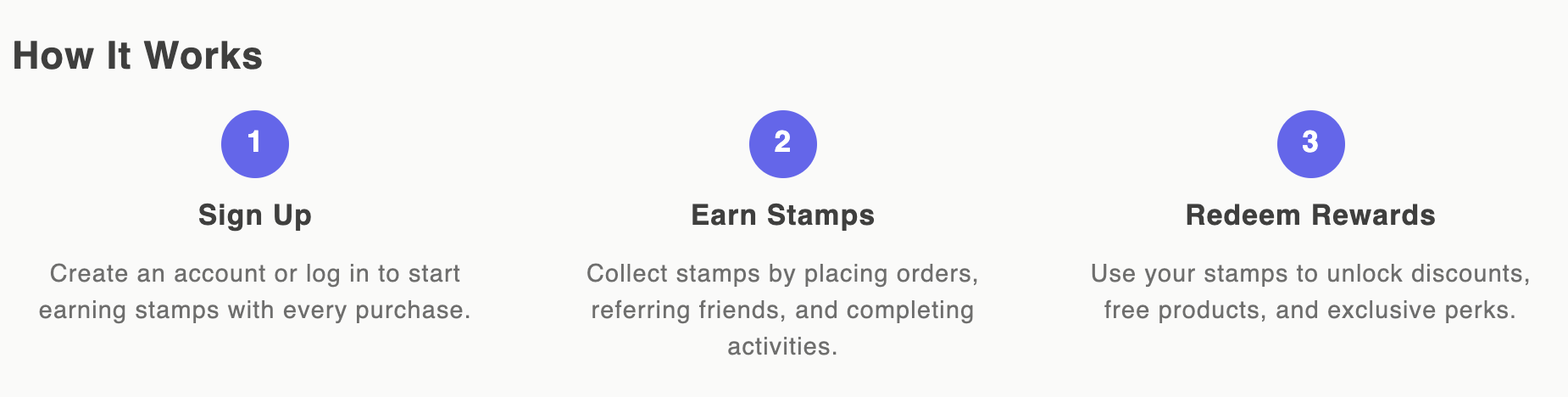
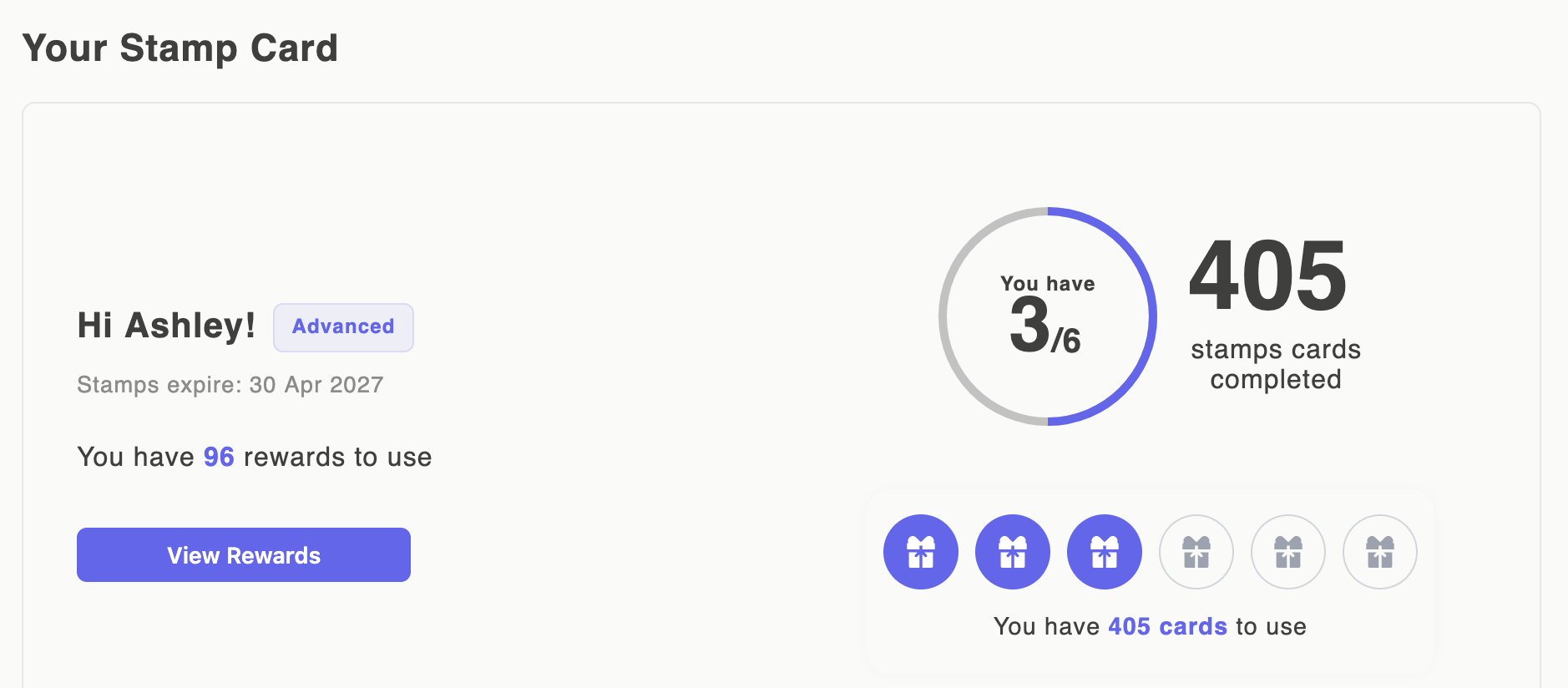
Stamp Progress
This is where customers can see how many stamps and stamp cards they have.
Not logged in
logged in
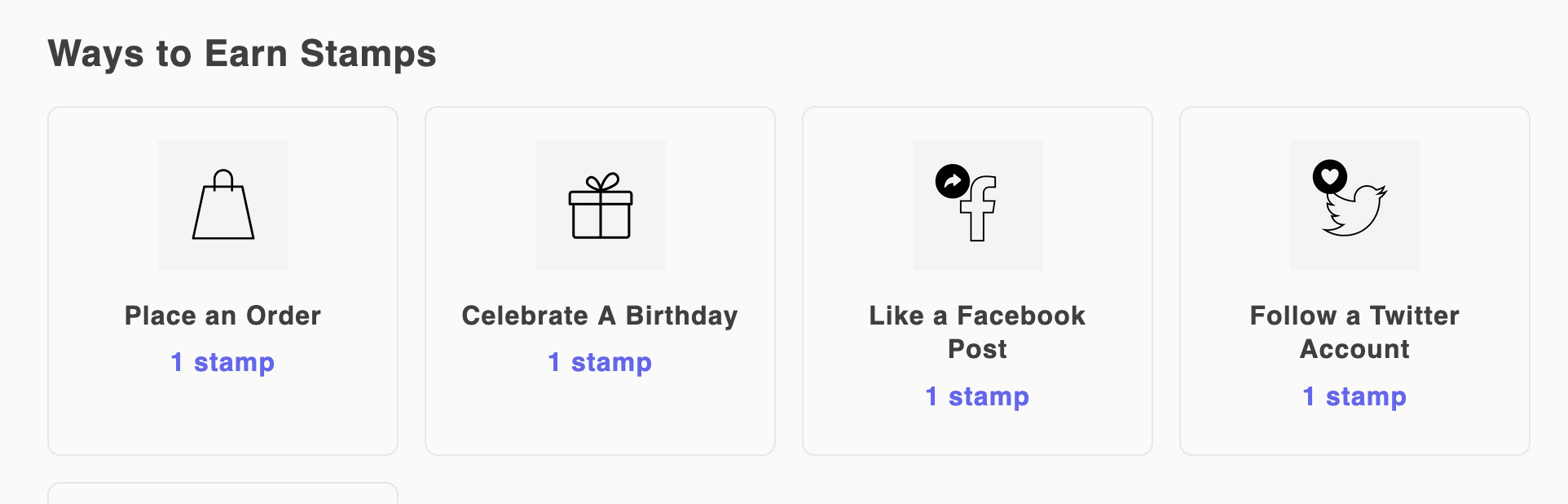
Ways to Earn
Showcases all the ways customers can earn stamps through your loyalty program.
Ways to Redeem
Shows the available rewards customers can get, and they can redeem rewards directly from this section.
VIP Tiers
Displays the loyalty program’s VIP tiers so customers can see what each tier has to offer and which tier they are currently in.
Recent Activity
Shows a timeline of customer stamp activities with colour-coded entries.
Alternative ways to add sections to your theme
You can also add the sections to your theme from within our app by visiting Onsite content > Landing Page Sections page in the app.
From there you can click on add to theme, this will deep link into the homepage by default and will allow you to see each section.
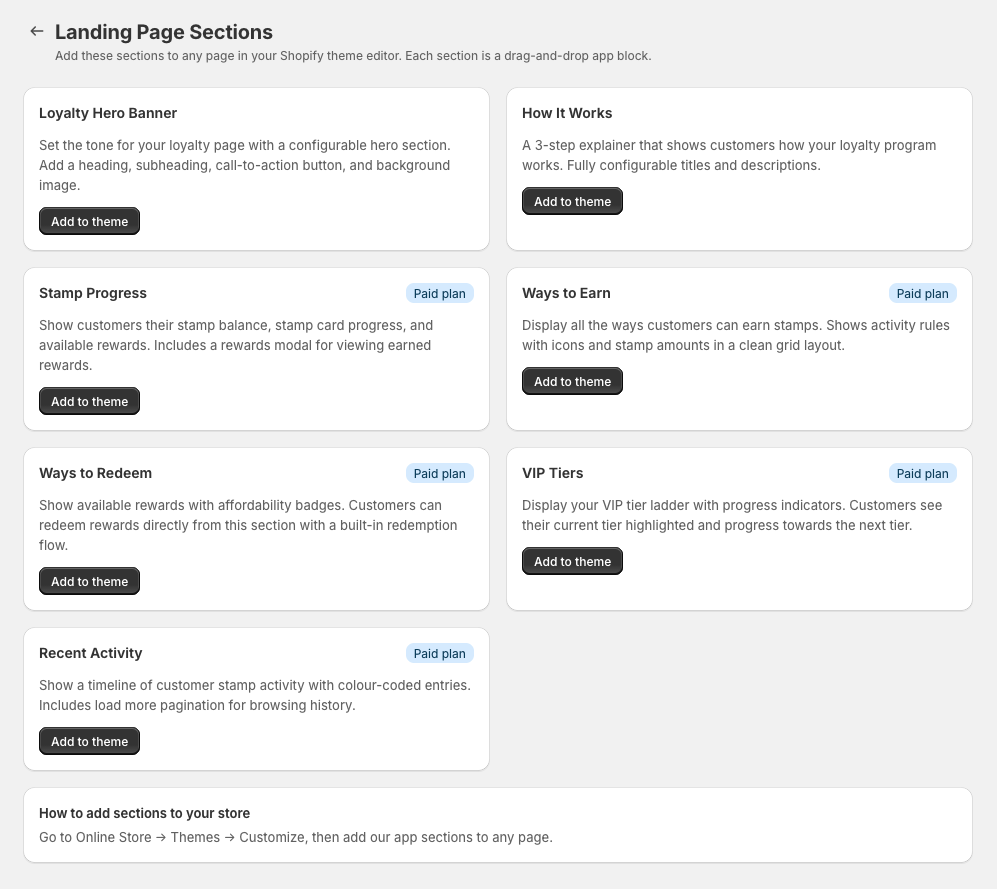
Once you have added all of the above blocks into your page you can simply alter the layout by moving the blocks around on the left hand side menu.